The 1.1.0 version bump landed on August 21; by the time the v1.1.0 hot-update runtime published on September 1, the window held 52 commits. That publish was its own upgrade to release engineering: alongside the desktop installers, a hot-update runtime shipped as a first-class release artifact for the first time, so capability updates no longer wait for a full installer every time. This release announces no new paradigm. It puts muscle on the skeleton 1.0.0 delivered: every desktop surface (editor, preview, split layout, Quick Panel) rebuilt into a tool that does work; the sync layer upgraded from "functions" to "shows you what it is doing"; Windows hotkeys rewritten from scratch; subscription compiled in by default instead of opt-in.
The text editor: from viewer to workbench
The 1.0.0 text workbench answered "what is this text." The 1.1.0 editor answers "what should this text become." The editing dialog reorganizes transformations into groups: letter case conversion, formatting and encodings, and line operations like sorting, deduplication, trimming, and removing blank lines. Search and replace got a redo, statistics are fuller, and the reset control carries a visual indicator, so there is always a clear line between what you changed and the original.
The save path is complete now too. Edited content can be saved as a new clipboard item; a new ClipboardSaveEditV1 request landed in the platform clipboard modules, snapshots carry source-app information, and the result writes back to the system clipboard. Workbench admission no longer depends on a hardcoded list of document kinds; it checks content capabilities (ContentCapabilityV1::Edit), and semantically-HTML documents such as SVG markup or Figma source get the appropriate text extracted before entering the workbench. The surrounding UI moved with it: an explorer split layout and document-pane components landed, OCR and translate moved from dialogs to sheet surfaces with reworked responsive layouts, the legal center dialog joined the same split structure, the file preview UI was rebuilt, and text previews gained a line counter.
Quick Panel: twice the size, rebuilt feel
The Quick Panel's default size grew from 420x640 to 1065x680, with the position module's default constants and all three macOS window config variants updated to match, and wider minimum-width allowances. On macOS the panel gained window vibrancy through a new permission-declared quick_panel_set_vibrancy_v1 command, applied from the config file at startup and integrated with opacity management; native popup opacity updates now flow through a serial queue with timeout protection, clamped to a 30% floor, and async operations (peer endpoint reads, device snapshots, settings refreshes, background runtime status) each carry explicit timeout ceilings.
The configuration did some subtraction: the vertical/horizontal layout distinction is gone from the quick panel config, with shortcuts and jump actions as direct structures and a widened validation range for jump actions, a marked breaking format change. New default shortcuts close the workflow loop: cmdorctrl+T translates the current item, cmdorctrl+O runs OCR, cmdorctrl+E opens the editor, cmdorctrl+F focuses search. The window itself changed character: system decorations are off on every platform in favor of a borderless frame, the custom title bar is standardized, maximize toggling is supported, and the shortcut configuration dialog layout was straightened out.
Sync grows gauges
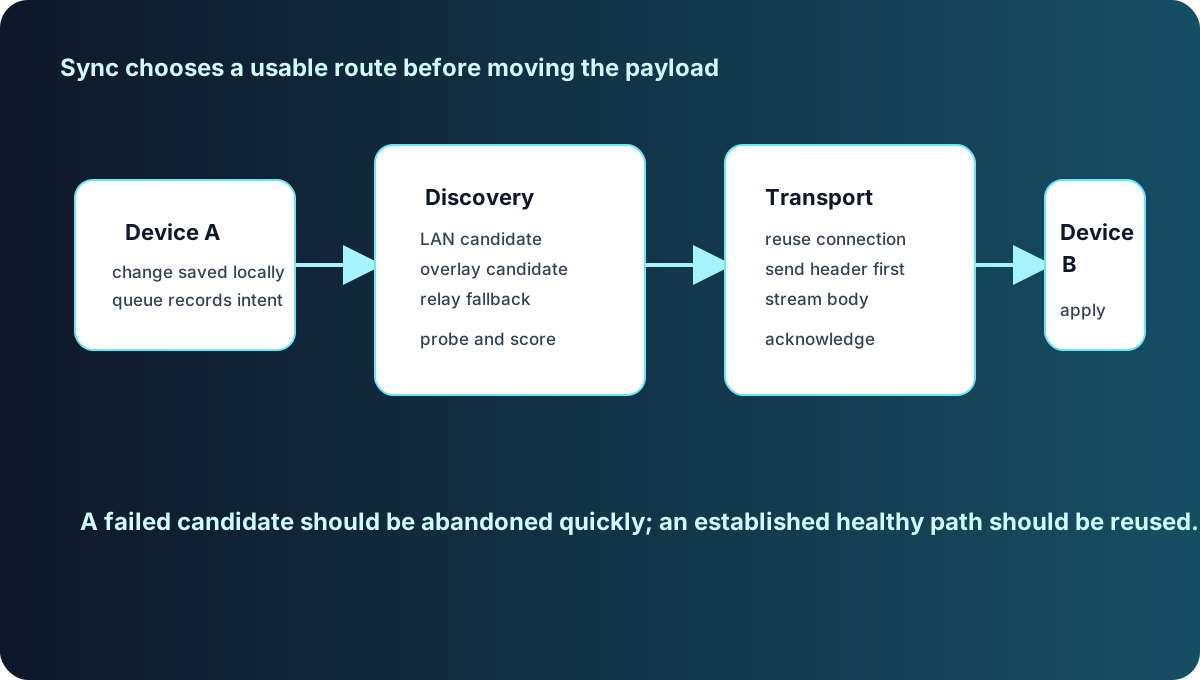
Before 1.1.0, "syncing" was one opaque state. This release adds per-item sync progress: indeterminate and determinate forms, download rates and byte counts, compact and standard densities, and an overall summary in the toolbar, localized in English and Chinese. Alongside it sits real network diagnostics: PeerNetworkDiagnosticsV1 exposes path telemetry, probe status, and timing, backed by a new diagnostics endpoint on the node manager with matching Tauri plugin permissions; latency probes report per-attempt counts and durations; retry delays adapt to transport session readiness; and catch-up sync handles the throttled state properly now.
Discovery got finer-grained too. DiscoveryCandidateProbeQueueV1 coalesces route-change notifications per peer without dropping newly learned candidates, probe triggers extend to discovery candidate endpoints, and failed probes back off. Peer snapshot network-info lookups were batched, and the popup loader switched to a unified transport payload classification. Correctness got its own patch: when content is pasted directly by header, history change events now fire only after every required blob is locally available, so the UI stops making optimistic claims about content locality; catch-up sync also handles the throttled state properly now.
Two defaults changed. The relay mode default moved from off to prod, so cross-network sync works out of the box; and the lan_only network profile no longer force-disables relay, PKARR, and discovery; those three are independent settings now. On the query side, history queries gained Clipboard and Trash scoping, conditional batch sizing depending on whether residual matching is needed, direct key-based lookup with query filters, timing metrics for the prepare, candidate-load, and residual-match phases, and a search_id that ties the trace together. Sync capability negotiation was refreshed too: account sync now replaces stale capability declarations, so what each side supports gets reconciled instead of assumed.
The Windows hotkey rewrite
Windows global hotkeys were the most strained part of the compatibility layer. 1.1.0 replaced them with a native path: a dedicated hotkey thread with a message loop handles registration and commands, synthetic keyboard input injection executes pastes reliably, and system shortcut takeover lets Syzygy claim combinations other programs are holding. The cmd and command aliases normalize to the Windows Super key, and conflict detection recognizes both. Tests cover held-modifier hotkey dispatch, recovery and probing of transient modifier states, and the recording and recovery flows; build scripts put fig into the default Windows feature set with a dedicated build-contract test suite guarding it, so Figma integration rides along in default builds.
Formats, tags, and PRO
Two format upgrades. OCR calls accept a language hint: hints are normalized and mapped to engine language codes, recognized lines are grouped by dominant script and returned as multiple candidates sorted by confidence, cache keys are language-aware, and mobile remote OCR accepts hints as well. On the remote-image side, a new endpoint reads original image content, and remote SVG images render through resvg rasterization with validation of SVG dimensions and embedded image sizes.
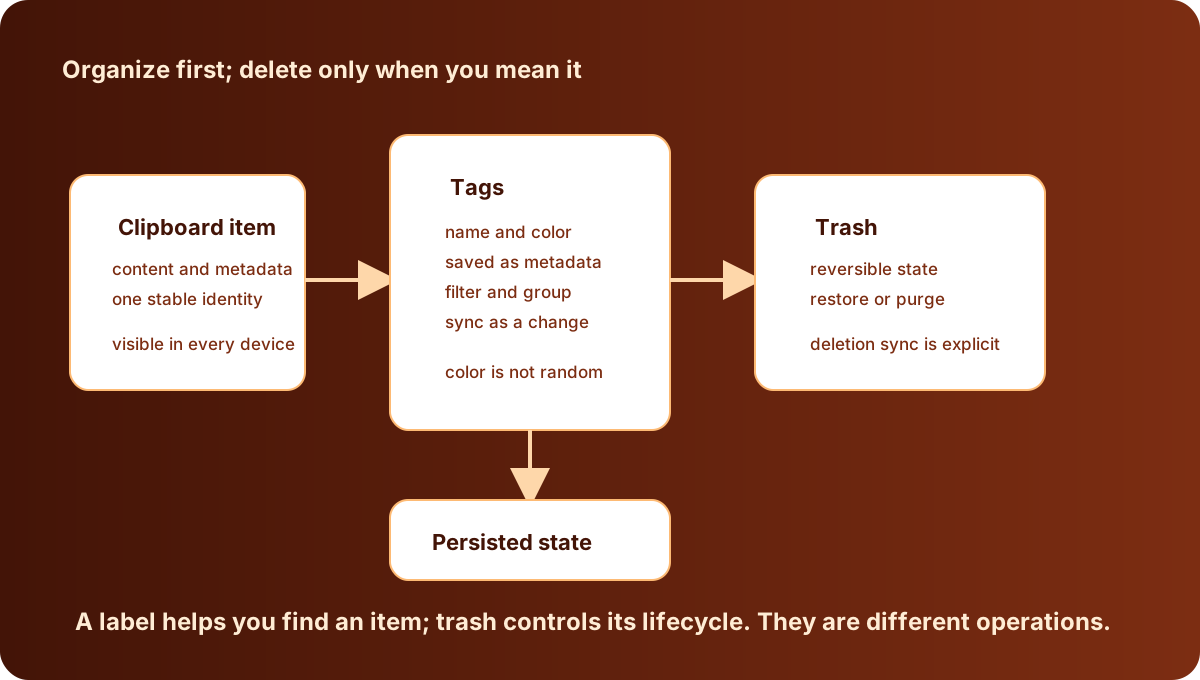
Tags got colors. Tag records carry an optional color field, tag statistics became a color-aware TagRecordDtoV1, the API methods renamed to tag_create, tag_update, tag_delete, and tag_query, and the mobile bindings followed. Colors sync with items and drive filtering and grouping.
The PRO flow settled in as a default capability in this release. The desktop crate's subscription feature is on by default: a bare cargo build can no longer produce a binary whose frontend calls an unregistered plugin. The UI gained a subscription auth card and an advanced panel, the latter supporting custom server configuration; the subscription overlay markup was enhanced with runtime platform detection tests added, and sync operations picked up a proper pending state with return handling. Secret stores learned to migrate: file, in-memory, and keyring stores can export and merge snapshots, writes are atomic, and source preservation and conflict handling both carry tests.
A visual consistency pass
Between the feature commits ran a systematic consistency pass, worth listing separately because it defines how 1.1.0's desktop feels: border radii converged onto CSS variables, app-shell color variables were reworked, linear gradients became radial ones, and title bar styling was standardized. The clipboard item's pin icon became a bookmark, its pinned state simplified from a rotated scale to a plain scale in the theme's primary color. The drag handles on the OCR sheet, section navigator, and file preview unified into white capsule handles that appear only on hover or drag, with opacity and scale transitions. One easily missed fix: quick panel windows are now identified and routed through a new store system based on window labels and query parameters, the clipboard page enters the correct dynamic mode from that, and the old panel-specific clipboard component is deleted.
Other small changes
The command palette remembers your last command, shows it at the top with an indicator, answers to recent, last, or previous, and syncs across tabs through storage events, with tests over the storage paths. The startup diagnostics screen has a one-click copy for log paths with localized states. Byte counts in the clipboard inspector render as human-readable units (1.00KB, 9.80MB) through a tested formatter. Default column widths got a test baseline, and transient errors are now correctly classified as non-fatal. One low-level fix: the mobile builds' panic strategy moved from abort back to unwind, so wry/WebKit's Objective-C exception boundary on macOS stops crashing the app; a boolean flag in the hotkey runtime config became an optional value, expressing the config space more accurately. The paste-notification logic was centralized into a single emit_history_change_if_header_local_v1 entry point, replacing duplicated checks in the sync command executor.
Boundaries and breaking changes
This release marks three breaking changes explicitly. The tag API methods were renamed and the quick panel configuration dropped its layout field; CLI scripts and the mobile bridge that depend on these interfaces need to follow, and the binding code in the repo has already been updated. The relay default changing to prod means cross-network sync is now default behavior. If you depended on the old semantics of "LAN-only sync by default", turn relay back to off explicitly in settings. The Windows system hotkey takeover claims occupied combinations, and conflict detection first identifies which combinations other programs already hold. After the panel grew to 1065x680, small screens are bounded by the minimum-width constraint, and the window is still clamped to the monitor's work area. Mobile changes in this release concentrate on the bridge and build layers: the Flutter bindings for tags and OCR follow the API updates, and the panic strategy fixes the macOS crash boundary. Desktop is this release's main battleground, but mobile capability alignment never stopped.
Next up is Syzygy 1.2.0. If you want the full picture of how pairing and sync work under 1.1.0, P2P pairing and sync walks through it.
Frequently asked questions
What is the biggest change in Syzygy 1.1.0?
The desktop moves from viewer to workbench: the text editor gains case conversion, sorting, deduplication, and save-as-new-clipboard-item; the Quick Panel grows from 420x640 to 1065x680 with vibrancy and a native opacity queue; sync gains per-item progress, network diagnostics, and discovery candidate probing.
Why did the relay default change to prod?
1.1.0 changes the default relay mode from off to prod so cross-network sync works out of the box. At the same time, the lan_only network profile no longer force-disables relay, PKARR, and discovery — all three become independent settings you control.
What is different about global hotkeys on Windows?
1.1.0 rewrote Windows hotkey handling natively: a dedicated hotkey thread with a message loop for registration, synthetic keyboard input injection for reliable pasting, system shortcut takeover, and cmd/command aliases normalized to the Super key.