You copy something on your PC. Your phone is right there, on a working network, and the item doesn't show up. When that happens, the failure lives in one of four very different places: whether the devices are allowed to sync at all (trust), which path the data should take (routing), who schedules the transfer (dispatch), and when the content actually counts as delivered (persistence). Describe all four as one thing called "sync" and every failure becomes a restart. Syzygy keeps them separate and observable. This article walks each mechanism and what its failure looks like.
The material comes from the architecture decision records kept next to the code and from the implementations themselves; where the code still falls short of the intent, we say so.
Pairing is not one click. It's three independent state chains
In the UI, pairing looks like "tap initiate, the other side confirms, done." Underneath, three chains advance on their own:
| Chain | Owner | What success means |
|---|---|---|
| Authorized → Active → release | Authorization service | The commercial relation (seat, pairing entitlement) is finalized |
| waiting → pending_confirm → confirming → terminal | Pairing session | The outcome of this interaction |
| Security material imported → trusted peer → runtime ready | Local node | Keys are on disk, local trust is committed, the runtime is prepared |
The split exists because the three chains have different owners and different failure modes. An authorization refusal is a seat or role problem; a cancelled session is user behavior; a failed material import is local state. Collapsing them into one status field makes every diagnosis a guess. The design explicitly forbids several shortcuts: a reachability preflight proves "I can connect," never "I'm allowed to pair." A scanned QR code or a successful probe is progress on one chain, not a completed pairing. And when local trust is already written but the authorization hasn't finalized, the case is handled as a failure with retry; the system does not quietly promote the relation to success. This is not a cross-service atomic transaction; the in-between state is real, and the docs refuse to claim automatic rollback at every stage.
Local trust also has a readiness barrier that's easy to miss. After importing the pairing token, a device waits until the discovery layer's key owner is actually ready before announcing itself as prepared. Key material on disk, runtime readiness, and the server-side relation each have their own commit point. Without that barrier, the other side could start syncing against a half-built device and discover mid-transfer that its key state was incomplete.
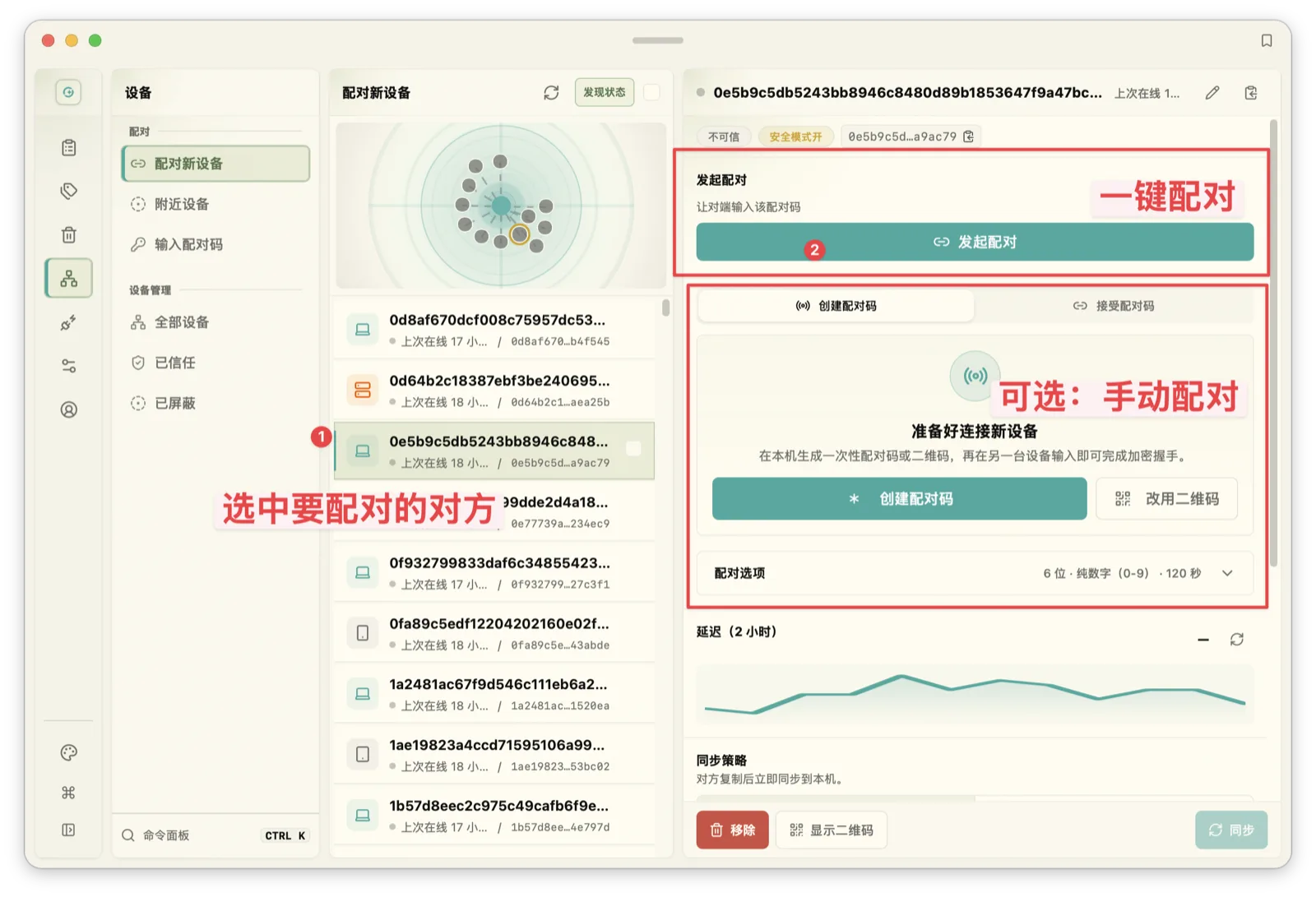
The pairing entry: select the peer, inspect its info, initiate. Authorization, confirmation, and trust commit each run on their own chain from there.
The honesty extends to unfinished work: when the pairing ADR was written, a real-device regression for the pairing runtime was still open on the ledger, and the record states that implemented code and tests don't prove the real-device pass succeeded. That kind of written boundary is what separates "working as designed" from "broken" during an incident.
Why new pairing requires the network
The authorization step in pairing needs the authorization service to be online. That reads like a limitation, and it's really an anti-double-spend control. Pairing entitlements are countable resources: one seat covers one Pro PC and up to two free phones. If offline pairing were allowed, the same seat could come to exist on two separate device groups, and the quota would mean nothing. The service is the single authoritative counter; it verifies at pairing time, then finalizes the relation.
Role combinations are decided by a pure function, and clients don't self-authorize just because their local UI says "Pro". The current matrix:
| Device combination | Result |
|---|---|
| Free phone ↔ Pro PC | Allowed; quota 1 on the phone side, 2 on the PC side |
| Any Pro-to-Pro combination | Allowed, no relation quota |
| Any combination involving a free PC | Rejected |
| Free phone ↔ free phone | Rejected |
| Free phone ↔ Pro phone | Rejected |
Two boundaries worth memorizing. First, "authorized" and "active" are different states; authorization passing doesn't grant sync until the local flow completes. Second, a pairing denial never stops the local node: the denied device keeps its clipboard history and on-device processing and simply can't sync with that peer. The domain model does contain types for cached-offline and LAN-authoritative modes, but they are explicitly excluded from implicit fallback; if offline pairing is ever opened, it needs its own consistency and revocation design, not a flipped switch. Purchase and activation steps are in the Pro activation guide.
Where the keys go, and where the ciphertext is
The endpoint of the trust chain is key material on disk. Content encryption is XChaCha20-Poly1305, applied in streaming chunks. Payloads are encrypted at the moment of capture; what lands in local storage is ciphertext, what crosses the network is ciphertext, and what a relay forwards is bytes it cannot read.
The key's travel path is exactly one: the pairing token. The initiating device generates a token carrying the content key and an independent key for the discovery protocol. The peer imports the token, verifies key identifiers and the security mode, and only then writes trust. The security-mode check has a strict detail: even if the handshake already delivered data, a mode mismatch still refuses to write a success relation. "The bytes arrived, so let it slide" is precisely the failure the check exists to prevent. Each device keeps its keys locally, with key IDs distinguishing generations. After pairing, no key ever leaves a device again.
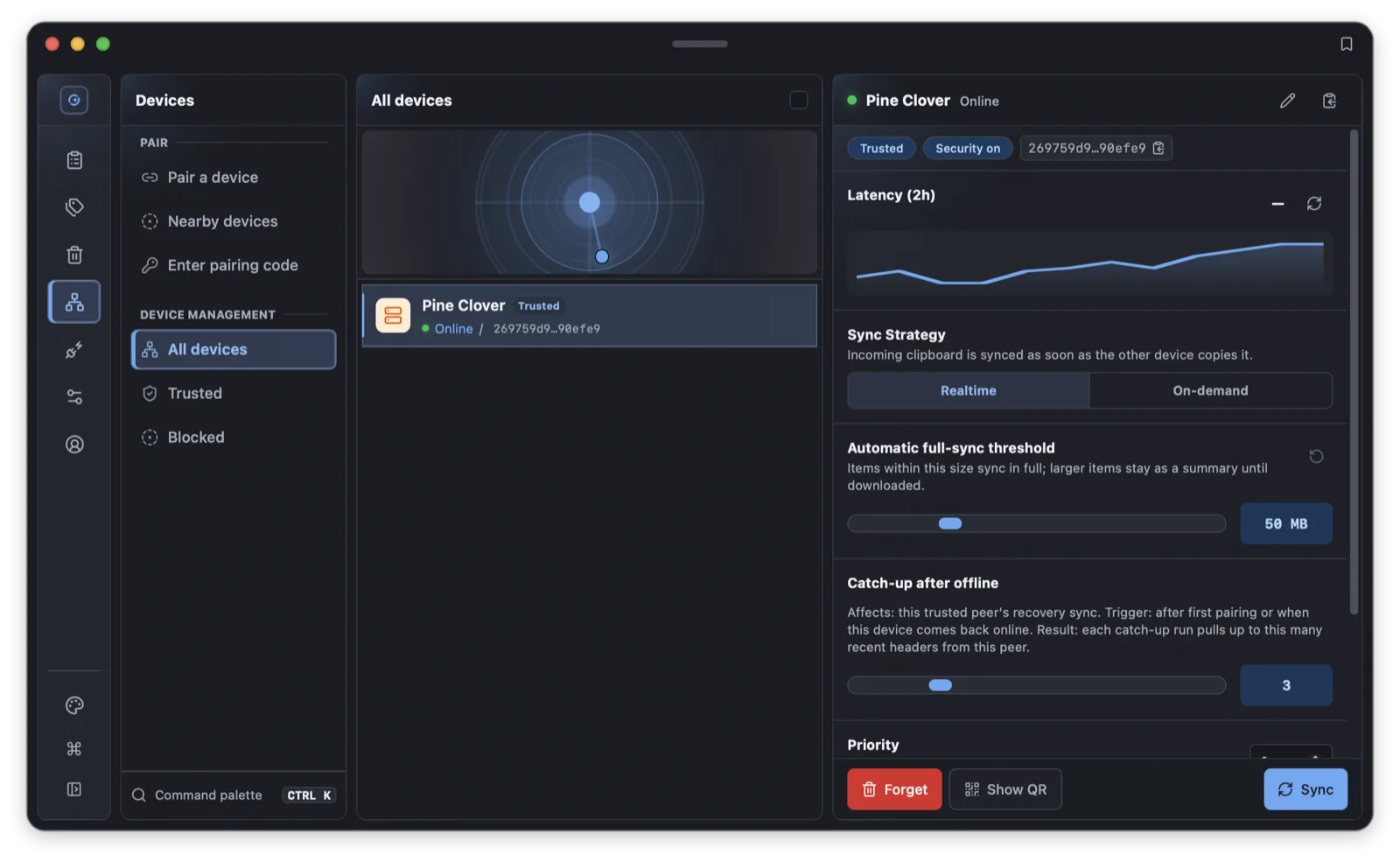
The trusted list: every entry is a completed key import; removing trust ends the sync entitlement.
One trade-off is written down on purpose: the encryption uses a deterministic nonce, so identical plaintext under the same key always yields identical ciphertext. The benefit is that dedup keeps working across devices and history entries; identical content stores a single encrypted blob. The cost is equality leakage, ciphertexts can be compared for "same content," which was evaluated and accepted in writing for a personal two-to-three device mesh. The corresponding boundary: dedup only holds within one key generation, because a new key turns the same plaintext into new ciphertext and a new hash.
Summaries don't travel naked either: with security mode on, the header a device broadcasts for discovery, previews included, is encrypted, and a third party that never completed pairing can collect the bytes and reconstruct nothing.
flowchart TD
    A["Device A copies content"] --> B{"Is a Pro/Team trust relationship established?"}
    B -->|"No"| C["Stays in the local workbench"]
    B -->|"Yes"| D["Encrypted locally, paths probed"]
    D --> E{"Direct connection possible?"}
    E -->|"LAN / NAT traversal"| F["Direct P2P transfer"]
    E -->|"Direct fails"| G["Encrypted relay: the server only moves ciphertext"]
    F --> H["Device B decrypts and writes to history"]
G --> HPath probing: candidate addresses are not routes
Think of the network layer as a courier service. Your address book holds the recipient's home, office, and family addresses: places you can attempt delivery. The route today's parcel actually took is a different fact. Syzygy keeps the two strictly separate: candidates answer "where can we try," and an authenticated connection answers "who did we actually reach, and how."
Candidates come from several discovery sources: multicast discovery on the LAN (mDNS), addresses observed between nodes (including VPN interface addresses), public distributed records (mainline), and relay service addresses. A relay is a public forwarder for traffic when both ends sit behind strict NATs: two people who won't open the door, with the front desk passing packages. It's a fallback; once a direct path exists, data stops using it. One vocabulary note: LAN describes where an address lives, direct describes the path a session takes, and a session over a VPN address can still be direct. Device identity is the node's public key. Addresses are dialing hints only; an unauthenticated address that answers is not a trusted device.
Probing costs resources, so it runs under a hard budget: 8 probes in flight globally, 2 per peer, at most 8 candidates per round, and an 8-second budget per peer. Probes to the same peer coalesce into a single flight, so hammering refresh in the UI doesn't stack probes. A network generation counter invalidates stale results, so probes from the coffee shop can't overwrite route health observed at home.
Ranking trusts only evidence. The paths that count are the ones reported by authenticated connections, ranked as selected direct, selected relay, other, and no-telemetry. Guessing network types from address ranges is a heuristic and is never promoted to an actual path. RTT history lives in memory, 2 hours and up to 720 samples, cleared on restart. The RTT in diagnostics is a control-plane round trip, not an ICMP ping and not the full "copy to pasteable on the other end" duration. The system today has no distributed trace covering the whole clipboard delivery, and the diagnostics view doesn't pretend otherwise. Diagnostic export carries only what diagnosis needs: no secrets, no raw private content, and explicit annotation wherever telemetry is missing or a heuristic was used.
Connection reuse and teardown have rules too. Transport is QUIC; control signaling, blob transfer, and group broadcast each run over their own protocol connections, pooled by device and protocol. The endpoint belongs to the node runtime, and a node restart must fully release the old endpoint before the port can be reused, so an immediate restart may wait a moment for the port. That's the release process, not a hang.
The sync state machine: summaries, payloads, three states
With trust established and a path chosen, how does content move. Sync has two layers. The summary, carrying type, preview, and time, is small and fast, so the peer's list immediately shows that something new exists. The payload is bigger and follows the receiving device's mode and threshold: automatic, or waiting for a manual download.
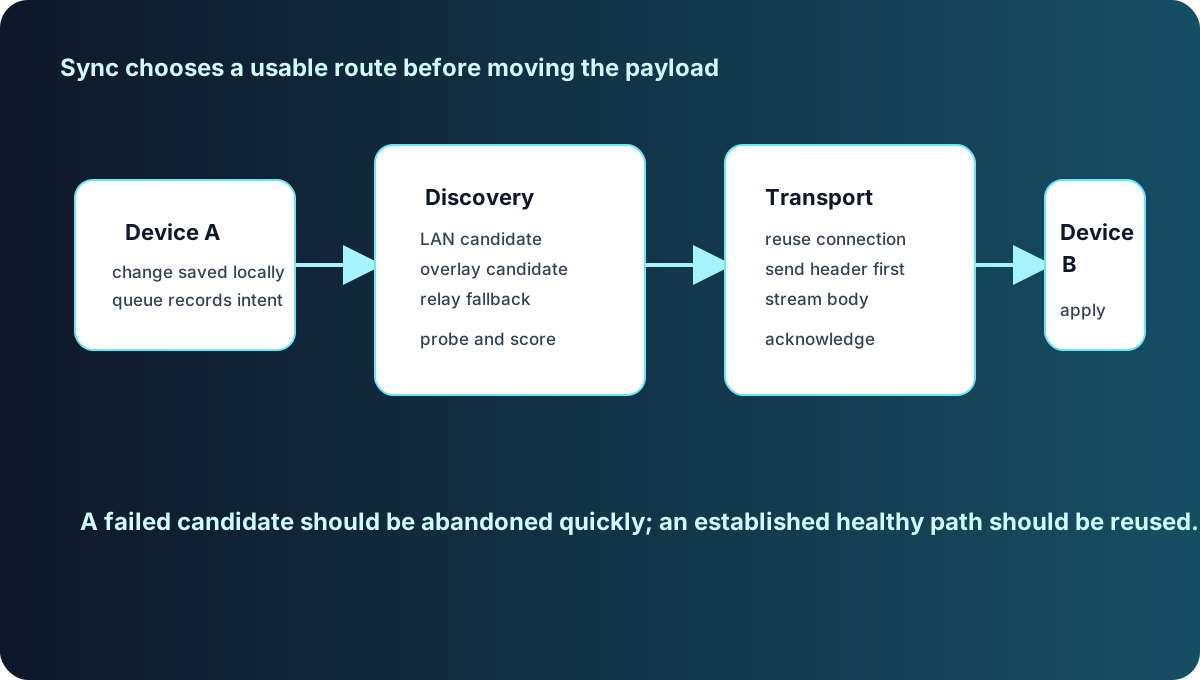
Summaries and payloads are separated on purpose: spend a little traffic so the peer knows, then deliver the body according to thresholds, keeping manual control over anything large.
Every remote item has one of three projection states locally: pending (we know it exists), syncing (payload in flight), and local (on disk, pasteable, previewable). Underneath, the queue's tasks come in four kinds: fetch summaries, materialize payload, materialize file entry, and download file. Each task records its state durably: queued, in flight, deferred, blocked, succeeded, failed, or cancelled. Tasks survive an application restart. Retries carry backoff and budgets. Cancellations record a typed cause. "Blocked" deserves a highlight: when an environment gate fails (low-power mode, offline, a metered network), the task is not a failure but a parked one, waiting for the condition to clear.
stateDiagram-v2
  [*] --> Queued: task created
  Queued --> Running: dispatched by the planner
  Running --> Succeeded: content complete, verified
  Running --> Failed: budget or retry limit exceeded
  Running --> Deferred: backing off before retry
  Deferred --> Queued
  Running --> Blocked: environment gate not met
  Blocked --> Queued: conditions recovered
  Running --> Cancelled: user cancel or preemption
  Succeeded --> [*]
  Failed --> [*]
  Cancelled --> [*]
Scheduling belongs to the background planner; the UI expresses intent and never dispatches network work itself. The planner owns dedup, budgets, priority, and retries, which prevents the two classic failures: duplicate requests from the interface layer, and a progress bar that lies because nothing recorded the task's real state. Manual download is a trigger, not a third mode. Both modes allow explicit downloads for anything over threshold; the mode only sets the automatic threshold, 50 MB for Realtime and 5 MB for On-demand by default, each adjustable from 0 to 200 MB. Large manual downloads queue in the background on weak networks and never block the foreground.
Reconnect catch-up is capped the same way on purpose: only the latest N summaries per trusted device, 3 by default, adjustable from 1 to 10, and "Sync now" obeys the same rule. A reconnect should not turn into a history flood, especially on a phone. One implementation gap is on the record: with several devices online, priority influences scheduling and display order, but the current implementation sorts results after prefetching from each peer, so "higher priority always issues its request first" is not a claim the docs are willing to make.
Offline, conflicts, and what "synced" actually means
Clipboard sync sidesteps the classic multi-editor conflict problem: every item is a record, not a document. An event's identity is source device plus sequence number, which is also the database primary key, so cross-device sync is idempotent by identity. Content copied independently on two devices never overwrites anything; identical content shares one stored blob by content hash. No merge, no conflict markers. Derived content obeys the same rules: text you process in the workbench and send back becomes a new, independent event with its input recorded, so the local provenance graph stays intact.
The only definition of "synced" is: the content is really in local storage. Transfers are content-addressed and hash-checked; anything that doesn't verify never lands. Failed downloads retry automatically, a transient error banner is not a final verdict, and the file being present locally is the only truth. The queue also carries a byte budget, automatic or unlimited, so background sync stays inside a predictable envelope and never punches through a data plan or a disk by surprise.
Troubleshooting map
Mechanisms, mapped to symptoms:
| Symptom | Check first | Mechanism |
|---|---|---|
| Pairing refused | Role combination and seat quota; authorization service reachable | Free PCs, phone-to-phone (non-Pro), and free-phone-to-Pro-phone are rejected; new pairing needs a live authority |
| Paired, but nothing syncs | Walk the four conditions: roles allowed, cloud authorization passed, mutual local trust, connectivity | Execution requires all four; missing one yields no half-paired state |
| Item stays a preview | The device's mode and threshold (Realtime 50 MB, On-demand 5 MB) | Modes only set the auto threshold; manual download always works |
| "Missing" items after reconnect | Catch-up cap, 3 by default (1–10) | Catch-up is intentionally bounded to prevent a history flood |
| Diagnostics show a relay | Normal fallback when direct fails; relays carry ciphertext only | Ranking trusts evidence from authenticated connections |
| RTT doesn't match perceived lag | RTT is a control-plane probe, not delivery time | No end-to-end clipboard trace exists yet, so none is reported |
| Download failed, then recovered | Let the retry finish | Retries are normal transport behavior; local presence is the verdict |
| Port not immediately reusable after node restart | Retry shortly | Endpoint lifecycle: full release precedes rebinding |
| RTT history is gone | Cleared on restart, by design | RTT series live in memory, 2 hours, up to 720 points |
Settings for all of this live in the Peers screen. Trusted devices can have thresholds tuned, priorities lowered, or be blocked outright; a block takes effect immediately and removes the peer's sync and access entitlements, while the rest of the local node keeps working. Pairing and trust changes only alter the authorization relation: local history that has already landed on either device is never deleted by unpairing or blocking, and data cleanup goes through the local trash. If anything here disagrees with observed behavior, the application's actual state wins; the install and first-run guide and Hello, Syzygy cover the usage side. Pairing and paths are the foundation; the layers that sit on top of sync will get their own write-ups.
Frequently asked questions
Pairing succeeded but content doesn't sync. What do I check first?
Sync requires four conditions at once: the device role combination is allowed, cloud authorization passed, both sides completed local trust confirmation, and the network connects. Missing any one means no sync and no half-paired state, so walk the four in order.
Can a relay server read my clipboard content?
No. Content is encrypted with XChaCha20-Poly1305 at capture time; what lands on disk and what travels over the network are ciphertext. Keys travel once inside the pairing token. Discovery broadcasts are encrypted too.
Will the full clipboard history from my offline period sync when I reconnect?
No. Reconnection catches up on only the last few summaries per trusted device, 3 by default, adjustable between 1 and 10. The cap is intentional so a reconnect can't flood the device with the entire offline history.