Syzygy is a Greek word for the alignment of three celestial bodies along a roughly straight line. The product borrows the geometry: several devices' clipboards aligned into one line, copy here, paste there. Concretely, it is a cross-platform clipboard manager with local history, search, OCR, and a text workbench, plus direct device-to-device sync over P2P. The core is free. This guide covers the 1.2.0 development cycle; available packages are listed on the download page. It explains: download and install per platform, the two settings worth checking on first run, the entry points for three usage paths, and what to check when a step does not go as described.
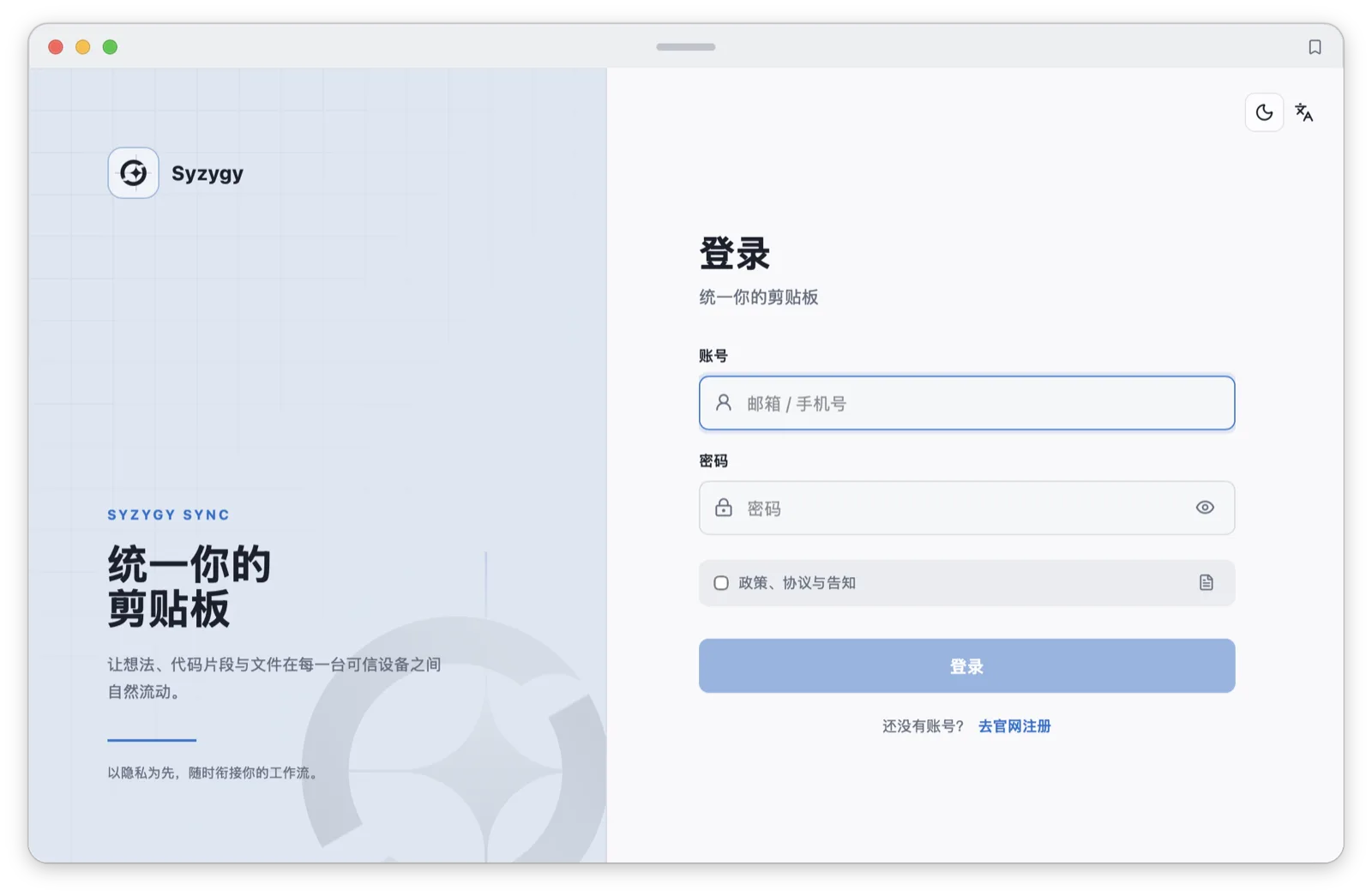
One precondition comes before everything: Syzygy requires an account. Pairing two devices involves a cloud-side authorization check, and the account is where that chain starts. Register on the website, then sign in inside the app:
Download and install, platform by platform
Get the installer from the official site, www.syzygysync.com. This is not boilerplate: the Gatekeeper and SmartScreen discussion below only works when the installer is the one the team signed, so a re-packaged copy from some mirror voids every signature check your OS would otherwise do for you.
Windows. Download the .exe and follow the prompts. One thing to expect: the Windows installer is not Authenticode-signed yet, so on first launch SmartScreen may show its blue "Windows protected your PC" dialog. That is the standard reaction to a program without an established reputation, not a detected threat. Click "More info", then "Run anyway".
macOS. Drag the app into Applications. Since 1.2.0, macOS builds are signed with a Developer ID certificate and notarized by Apple, with the notarization ticket stapled to both the app and the DMG. First launch should therefore not trigger the "cannot verify the developer" Gatekeeper block. If it does, check that you downloaded the latest build first.
Android. Install the .apk directly. Android asks once whether to allow installs from this source; allow it.
Linux. An AppImage exists and the build pipeline signs it, but the team has not fully tested Linux. Treat compatibility issues as known territory, and think twice before making a Linux box your main pairing device.
iOS. Still in App Store review. There is no download yet.
Accounts, the free tier, and where BYOK starts
After signing in, local clipboard history and OCR are available on the free tier, with limits on history size and file previews. Cross-device sync follows device-role and Pro-seat rules: free PCs cannot pair; one free phone can connect to one Pro PC, and each Pro PC can connect to up to two free phones. See the Pro activation and pairing guide for the full matrix.
AI features split in two. OCR ships inside the app and needs no configuration at all. AI translation and AI auto-tagging are BYOK (bring your own key): the app exposes the interfaces, you plug in your own service credentials, and calls burn your quota, not ours. Translation engines cover Baidu, DeepL, Google, Tencent, Youdao, and generic AI endpoints, all configured on the Plugins page.
PRO entitlements arrive as activation codes: enter the code on the activation page, confirm the entitlement list, assign the seat to a specific client on the seats page, then hit refresh on the account page of that client. The full walkthrough with screenshots lives in our PRO activation and pairing article.
The first five minutes: two settings worth checking
Open Settings and do two things.
First, language. Switch the UI language to whatever you prefer; it applies immediately.
Second, macOS only: grant the accessibility permission. Scroll Settings down to the Desktop Integration section and find the lock icon next to "macOS accessibility permission". Clicking it jumps to Apple's Privacy & Security settings; add Syzygy under Accessibility and return to the app.
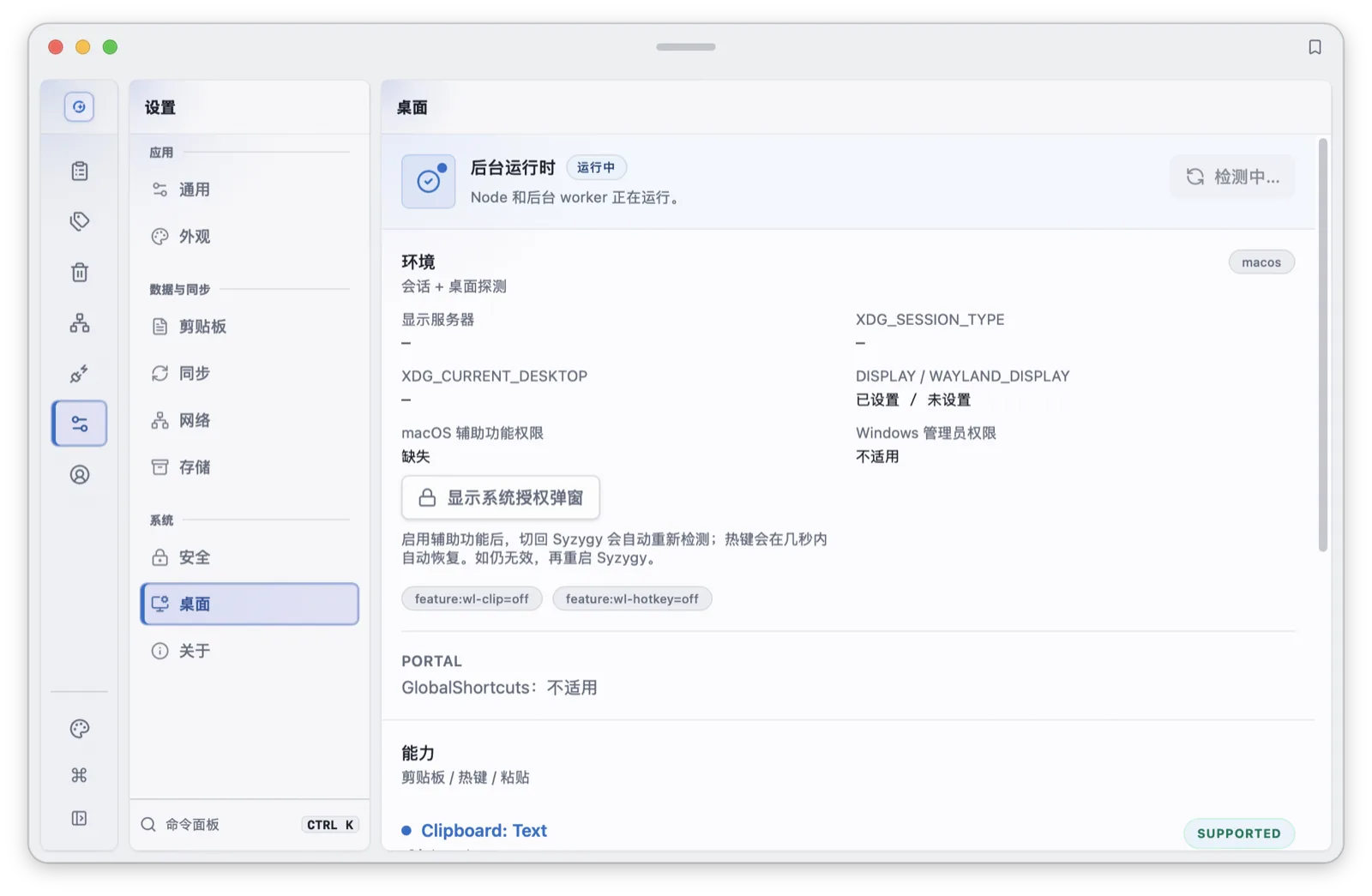
The success criterion is visible: the lock icon turns from orange to green. This one permission gates two things: injecting copied content into the system clipboard (how Syzygy pastes on your behalf), and registering global shortcuts. Without it, copies still land in history, but hotkey-triggered paste injection will not fire. Windows and Android need no equivalent step.
Local-only is a complete product
Sync is optional. On a single machine, with no pairing at all, Syzygy already works as a full clipboard workbench.
Plain text lands in a text workbench with word count, whitespace stripping, Base64 encode/decode, and JSON formatting. Code gets syntax highlighting. Markdown renders. Images and web images display inline, SVG code and Figma nodes render into visible images. "Copy as image" hands the rendered result to your chat app, while switching to source mode pastes the original SVG. Documents preview too: .xlsx, .docx, .pptx, and .zip. Text entries open in an editor with search, batch replace, case conversion, and duplicate-line removal.
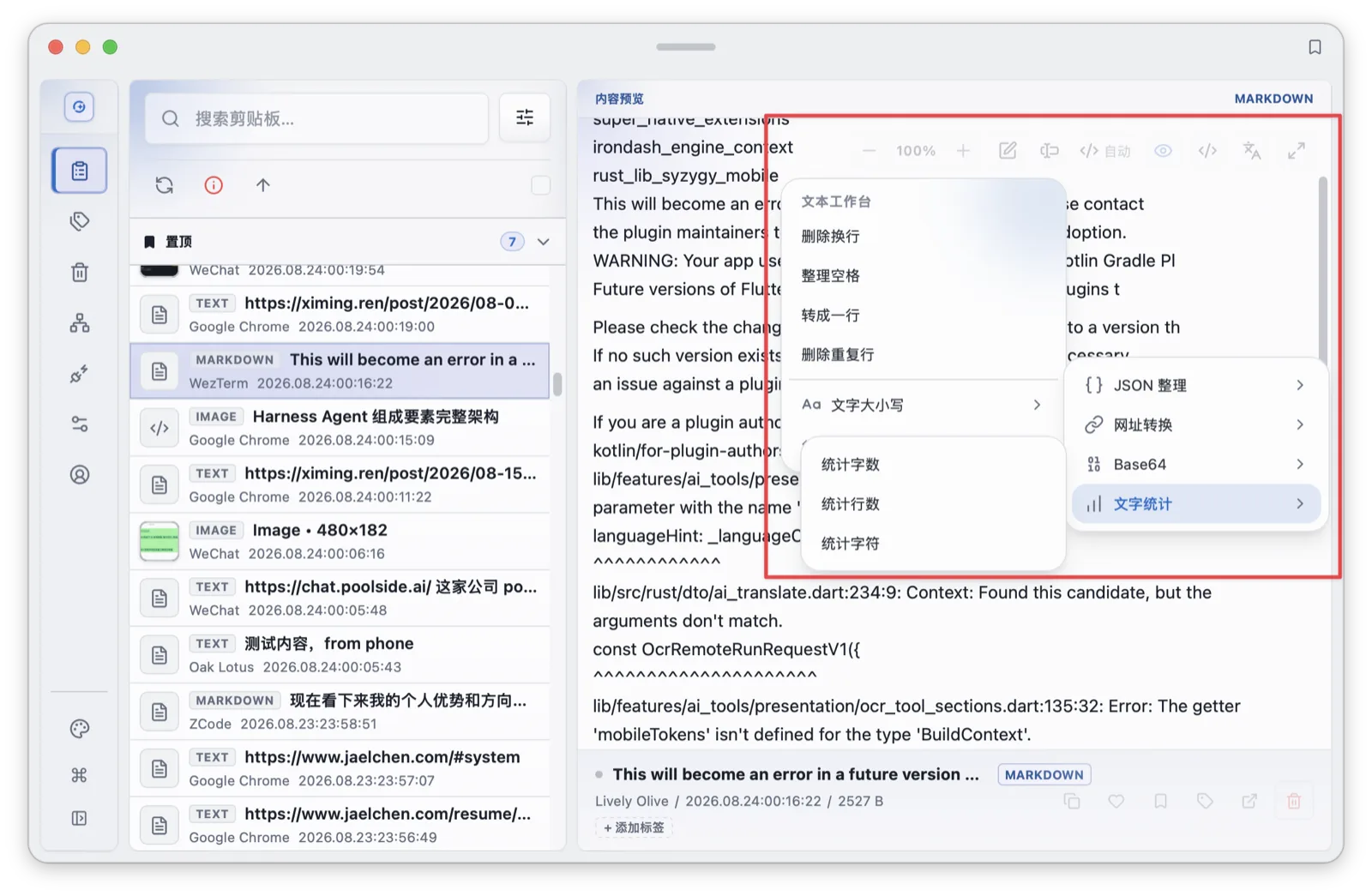
A few defaults worth knowing, each verifiable in settings: history keeps 100 items for 30 days, trash keeps entries for 7 days, and privacy masking is on out of the box for ID numbers, phone numbers, OTP codes, email addresses, bank cards, API keys, activation codes, and Web3 addresses.
Keeping history usable: favorites, pins, tags, trash
History grows fast; the management actions are four, all on the item itself.
Favorite (the heart icon) archives an item permanently, exempt from history expiry. Pin (the pin icon) puts it in the Pinlist shown at the top of the Clipboard tab and in the Quick Panel, with drag-to-reorder. Pinned items also get a dedicated chord: Ctrl+Option+digits 0-9 on macOS (Ctrl+Alt+digits on Windows) pastes the pinned item in that position, ten slots mapped to ten digits.
Tags are managed on the Tags page: create, rename, delete, plus per-tag statistics. Tagging can be manual or AI-driven; we recommend manual for now, because AI tagging burns tokens on every call and saves you less time than it costs.
Deleted items go to trash rather than disappearing. Space is actually freed when you purge the trash or when the default 7-day retention elapses. The upside is that a mistake is recoverable; the cost is that "I deleted it but the disk did not shrink" has an answer you need to know.
Cross-device sync starts with pairing
Install the second device, sign in with the same account, and sync still will not start on its own. Pairing is explicit. Open the Peers page, choose pair-new-device, pick the peer from the list, open its info column, and click initiate pairing.
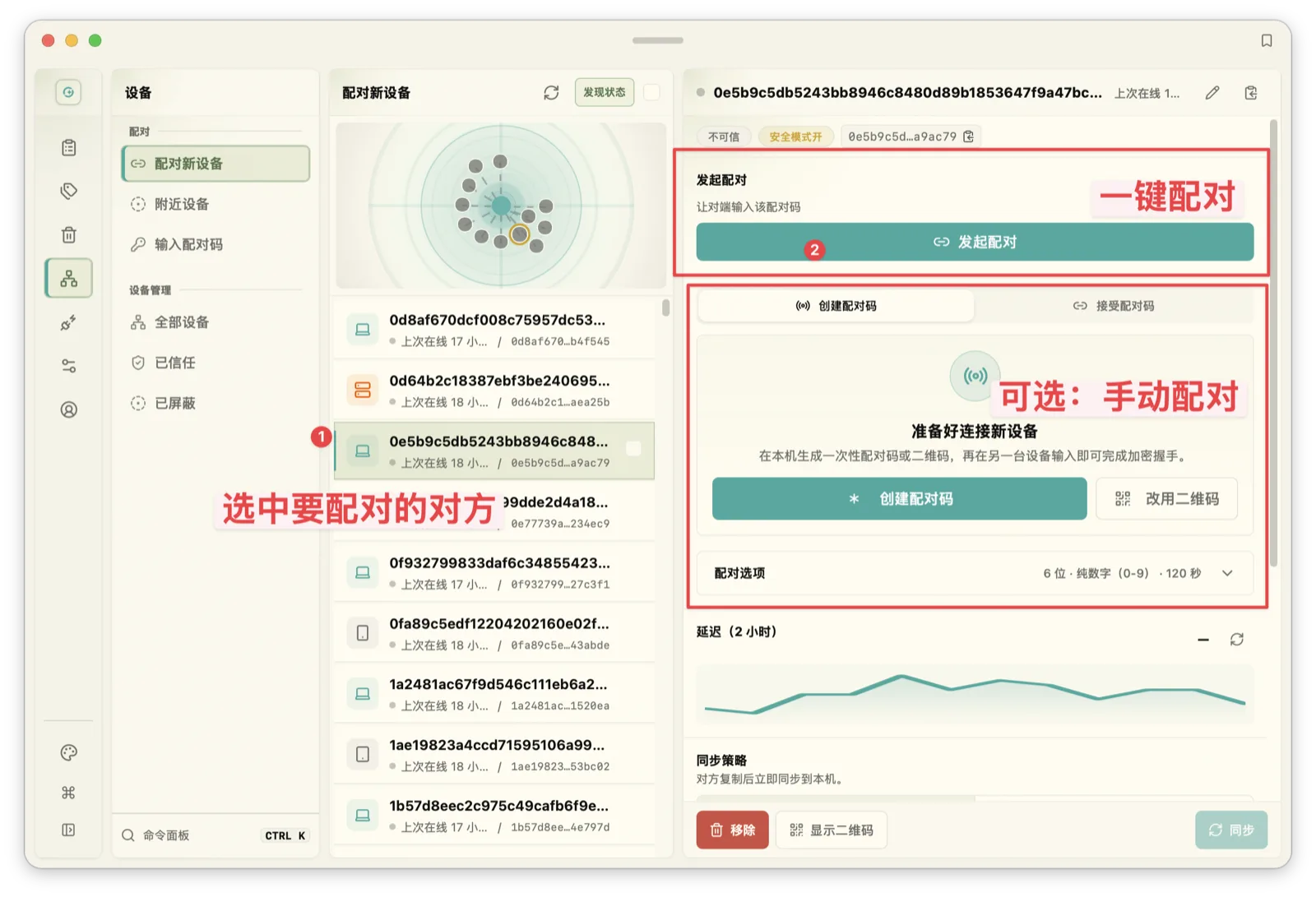
Pairing succeeds only when four conditions hold at once: the device role combination is allowed, cloud-side authorization passes, both devices confirm trust locally, and the network is reachable. When sync looks dead, walk that list; in practice most failures are the last item.
Sync itself has two layers. Summaries arrive first: the peer's list shows the new record with content type, preview, and creation time, cheap and fast, so you know something new exists. Full content follows the threshold: files at or under it sync automatically, larger ones stay as summaries until you click download. Each trusted peer gets its own mode: realtime defaults to a 50 MB threshold, on-demand to 5 MB, both adjustable from 0 to 200 MB. When a device comes back online it fetches only the latest 3 summaries (adjustable 1 to 10) instead of flooding you with everything it missed. In multi-device setups, give the work machine a higher sync priority so its items surface first.
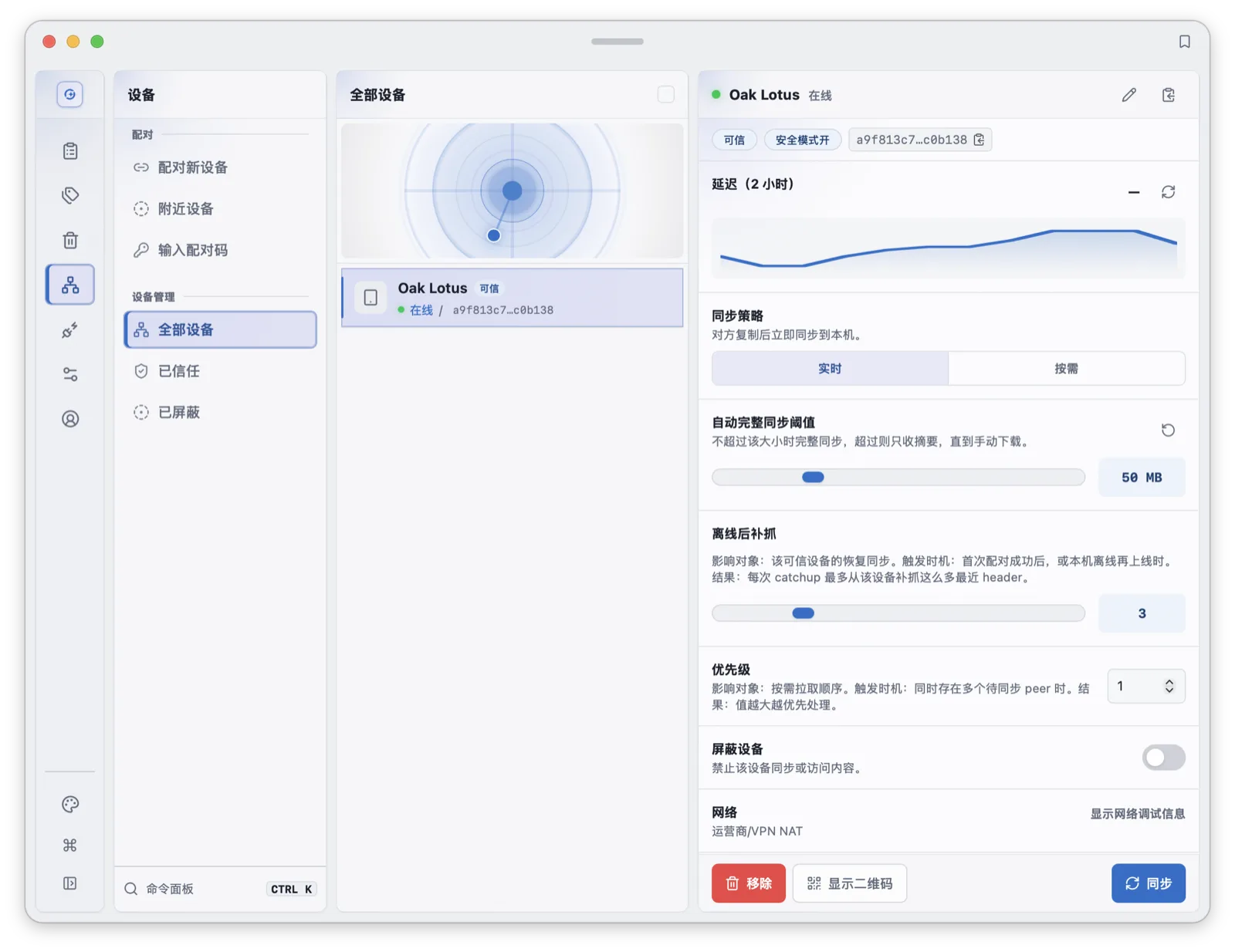
Manual downloads queue in the background and retry automatically; the source of truth is whether the file exists locally, not any single status message. A download that briefly fails and then recovers on its own is the retry machinery working, not a broken pairing. When you need something now, Ctrl/Cmd+Shift+S pulls the latest pending content from trusted peers, and Ctrl/Cmd+Shift+K triggers a sync round immediately.
The full AI setup
BYOK translation and tagging were covered above. The other two lines are the 1.2.0 headliners.
Voice input defaults to Option+Shift+R on macOS (Alt+Shift+R on Windows). Press to record, press again to finish, and the transcript lands in history as an ordinary clipboard entry. The pipeline runs locally by default: Silero VAD for streaming segmentation, with FunASR Paraformer, Qwen3-ASR, the full Whisper family, system recognition, and cloud engines as fallbacks. Details in our voice input article.
Local LLMs are the second block: mistral.rs runs GGUF models in-process, on Metal for macOS, exposing an OpenAI-compatible endpoint bound to 127.0.0.1, with a model catalog carrying SHA-256 checksums. Machines without a GPU still have runnable entries. See the local models workbench article.
Prompts and skills turn repeated AI operations into versioned assets with a slash menu. See the prompts and skills article.
How updates work
Since 1.2.0 the app updates itself. The updates section in Settings auto-checks by default; when a new version exists you see the version, the notes, and the size; downloading shows progress and speed; and after download the package is signature-verified before installation. Update servers come in two regions, global and China, switchable in settings. The update archive carries a signature, and a failed verification blocks the install. macOS update artifacts go through the same notarization flow.
The flow is deliberately observable: check, download, verify, ready, install, each stage with its own status. After updating, the version number in Settings is the direct confirmation.
When something looks wrong
Copied, but nothing in history. Check whether "capture via hotkeys only" got enabled in Settings. It is off by default, which means ordinary copies are captured passively; once on, only copies made through the configured global hotkeys are captured.
macOS shortcuts dead, paste does nothing. Go back to Desktop Integration and look at the lock. Orange means the permission lapsed; click and re-grant. Global shortcuts and paste injection share this one permission.
Sync not moving. Walk the four pairing conditions: role combination, cloud authorization, mutual local trust, network. Then check the peer's threshold: files above it only sync as summaries until you download manually.
Space not shrinking after deletes is the trash; purge it manually or wait out the 7 days.
Next steps
Configuration ends here. A good first lap: copy any text, press Option+Shift+V (Alt+Shift+V on Windows) for the Quick Panel, arrow keys to select, Enter to paste; then pair the second device and watch that entry show up in the peer's list. The full key map and its troubleshooting live in the keyboard shortcuts cheatsheet, and every binding in it can be verified inside the app.
Frequently asked questions
What does the free tier of Syzygy include?
Core local clipboard features are free, and built-in OCR works out of the box. History size and file previews have free-tier limits. Cross-device sync follows device-role and Pro-seat rules: a free phone can pair with one Pro PC, and a Pro PC can pair with up to two free phones; free PCs cannot pair. AI translation and AI auto-tagging are BYOK: you configure your own keys. PRO features activate with an activation code.
Shortcuts and paste do nothing on macOS. What now?
Check the accessibility permission: open Settings, scroll to Desktop Integration, and look at the lock icon. Global shortcuts and clipboard injection both depend on this permission. An orange lock means it lapsed; click it, re-grant in System Settings, and confirm it turns green.
Which platforms does Syzygy support?
Windows, macOS, and Android ship official installers. Linux has a signed AppImage but has not been fully tested by the team, so treat it as best-effort. iOS is still in App Store review.