Syzygy's shortcuts come in two layers, and knowing which layer you are in makes the whole map easier to hold. The first layer is global: these fire no matter which app has focus, and they handle capture, panel summoning, dictation, and sync. The second layer lives inside the Quick Panel: arrow keys, Enter, and function keys that navigate history and pick formats once the panel is up. This article walks the two layers through real workflows and ends with complete reference tables. Every binding in it can be verified inside the app.
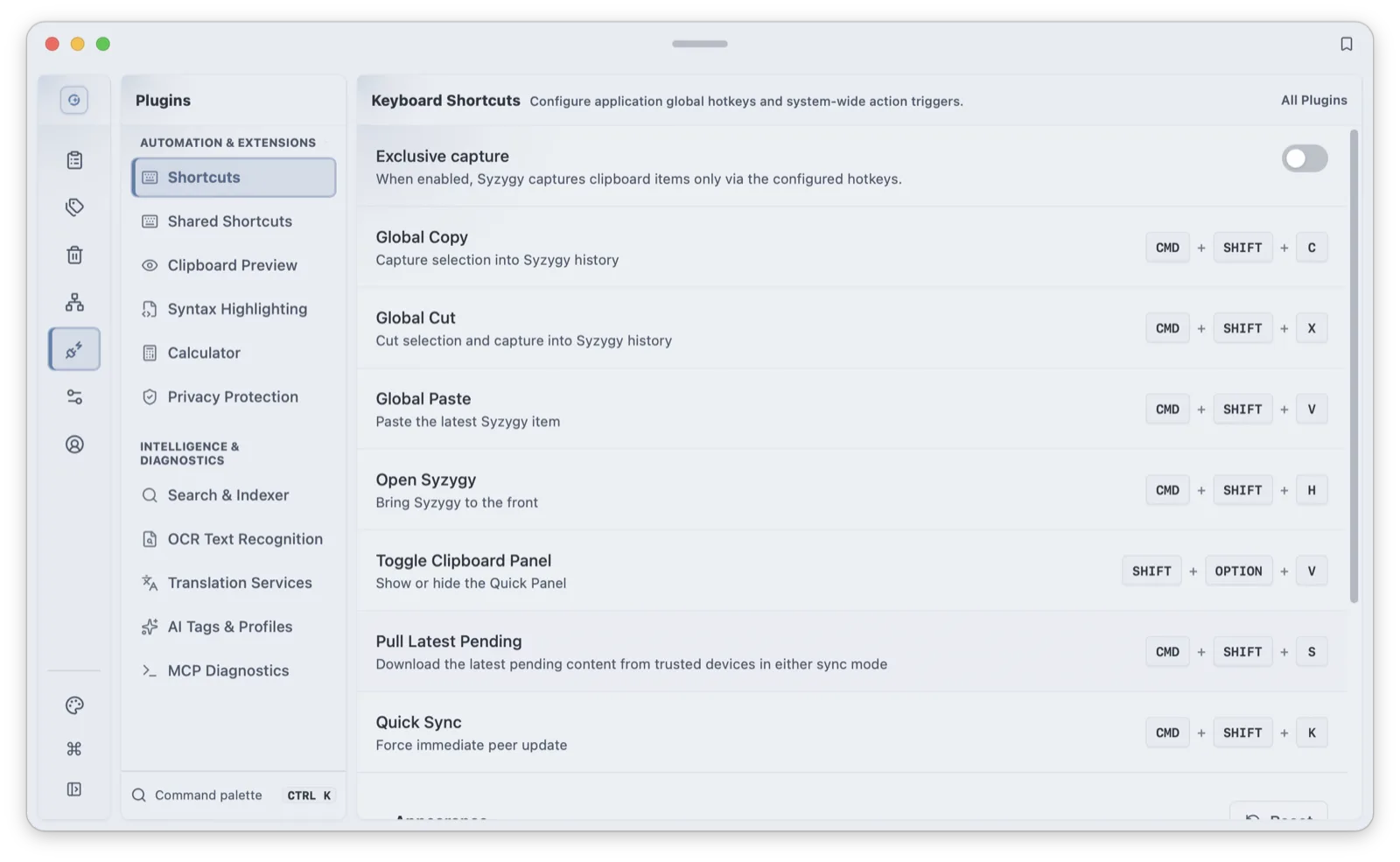
Where rebinding lives, before anything else: the shortcuts section of the Plugins page rebinds both global and in-panel keys. Hit Record, press the new combo, done; Disable clears a binding. The voice hotkey is stored once and shared between the shortcuts page and the voice page, so changing it in either place changes it everywhere.
Copy, find, paste
The highest-frequency loop needs no new muscle memory for its first step: with default settings, ordinary Ctrl/Cmd+C is captured passively (the "capture via hotkeys only" switch in Settings is off by default). The explicit global keys are Ctrl/Cmd+Shift+C to capture the selection, Ctrl/Cmd+Shift+X to cut-and-capture, and Ctrl/Cmd+Shift+V to paste the newest history item straight away.
To find older content, press Option+Shift+V on macOS (Alt+Shift+V on Windows) for the Quick Panel. It hides itself after five minutes by default, and the same hotkey dismisses it sooner. Arrow keys move one item at a time; Shift+↑/↓ jump five items per press, with the step configurable from 1 to 99. Ctrl/Cmd+F focuses search, and Ctrl/Cmd+K opens the command palette, the search entry for every page and command in the app.
Once the target is selected, Enter and Shift+Enter paste different things:
| Key | Behavior |
|---|---|
| Enter | Primary action: clipboard items paste as-is; other lists open the detail view |
| Shift+Enter | Alternate-format paste: path items paste as files, rich text and Markdown paste as plain text, SVG pastes as a PNG image |
| Delete | Move the active item (or the multi-selection) to trash |
| Space | Toggle the item's selection state |
Copy a file path from your file manager: Enter pastes the path text, Shift+Enter pastes the files themselves. Copy rich text from a web page: Shift+Enter pastes clean plain text. Copy SVG code: Shift+Enter pastes a rendered PNG. One key, three format conversions.
For the handful of snippets you paste daily, pin them and skip the search entirely: Ctrl+Option+digits 0-9 on macOS (Ctrl+Alt+digits on Windows) pastes the pinned item in that position: ten slots, ten digits. The digits are fixed; only the modifier chord is configurable.
Preview, expand, and switch files
Long content deserves a look before it lands somewhere. Shift+→ opens the selected item in the full-surface viewer, Esc backs out of it, and Shift+← closes the viewer equivalently. Shift+Space expands the item inside the panel without the full surface.
File items go one level further: once expanded, Ctrl/Cmd+↓ and Ctrl/Cmd+↑ move between the files in the item, so you can check attachment one and then attachment two without touching the mouse.
Long lists also get jump semantics: Shift+↑/↓ jump by step, a jump-to-top action lands on the first item and remembers where you came from, and the return action goes back to that remembered position. Scrolling through a few hundred items with a held arrow key cannot compete.
Search has a small touch that pays off daily: when focus is anywhere outside the search box, typing appends characters to the query and focuses the box, and Backspace works the same way. Summon the panel and just start typing.
Speak, and the words land in the clipboard
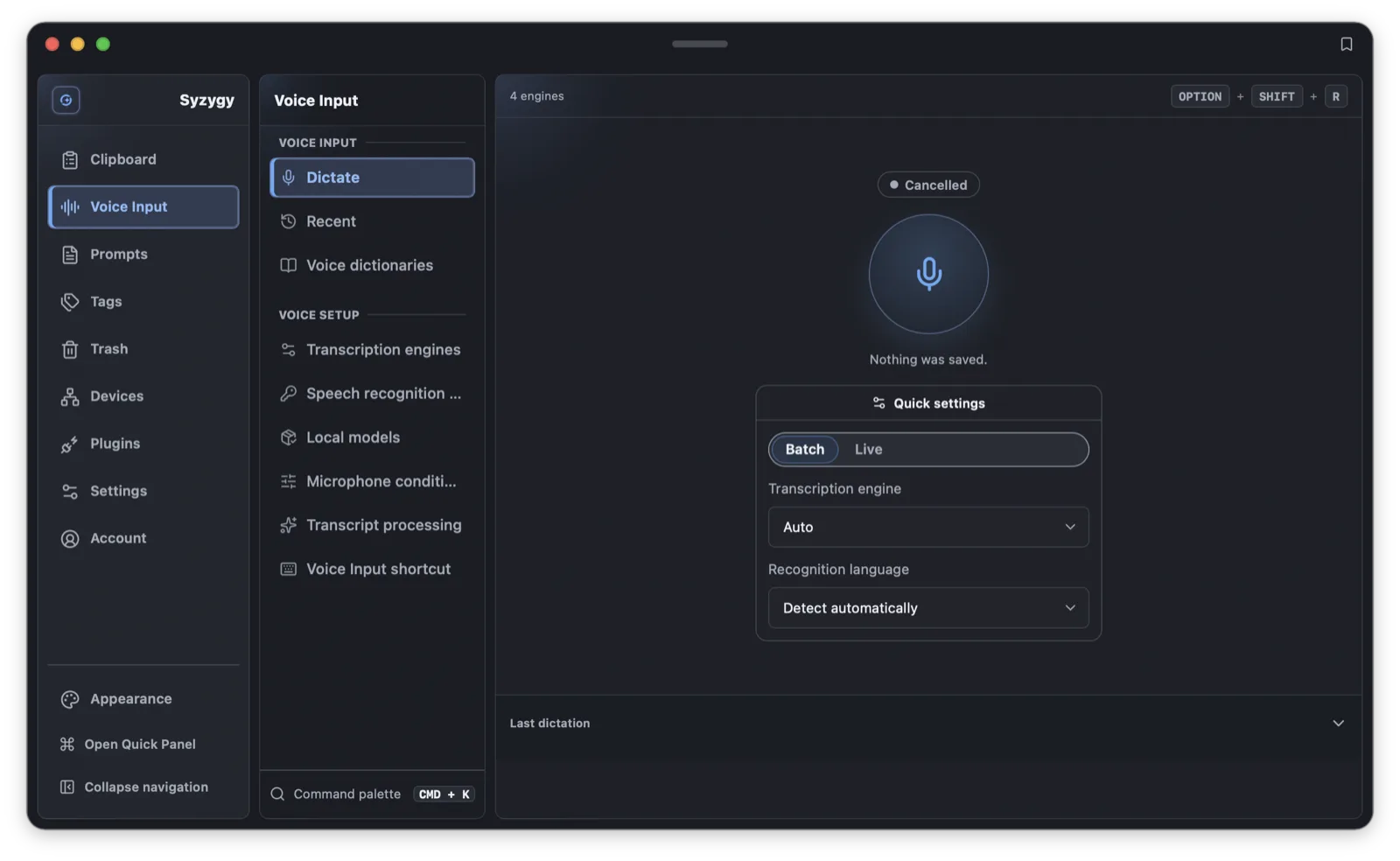
Voice input defaults to Option+Shift+R on macOS (Alt+Shift+R on Windows). The first press starts recording, with the panel wearing a compact voice layout at the bottom center of the screen; press again to finish, transcription runs, and the text enters history as an ordinary clipboard item. From there, Ctrl/Cmd+Shift+V or the panel pastes it like anything else.
The panel shows each stage: listening, paused, transcribing locally, preparing the clipboard entry. Recordings over 300 seconds add one more stage after the fact, a whole-recording re-recognition pass that trades a little extra time for better accuracy. Transcription runs locally by default, and the free tier paces continuous recording at 60 seconds per take, with longer speech segmented. The engine fallback chain, hotwords, and the re-recognition pass are broken down fully in our voice input article.
Device-to-device relay
After two devices are paired, three keys carry the baton: Ctrl/Cmd+Shift+K triggers a sync round with peers right away; Ctrl/Cmd+Shift+S pulls the latest pending full content from trusted peers, which matters for anything over the sync threshold that arrived as a summary only; and Ctrl/Cmd+Shift+V pastes the newest item. When that item just arrived from your other machine, this is the last leg of the relay.
Direct tabs and the command palette
Option+Shift+U on macOS (Alt+Shift+U on Windows) summons the Quick Panel directly onto a configured page: the AI workbench by default, changeable to prompts, clipboard history, voice input, tags, trash, plugins, or settings. Pressing it again while already on that page hides the panel. Ctrl/Cmd+Shift+H brings the main window to the front.
The command palette, Ctrl/Cmd+K, works in both the Quick Panel and the main window: type a page or command name to jump.
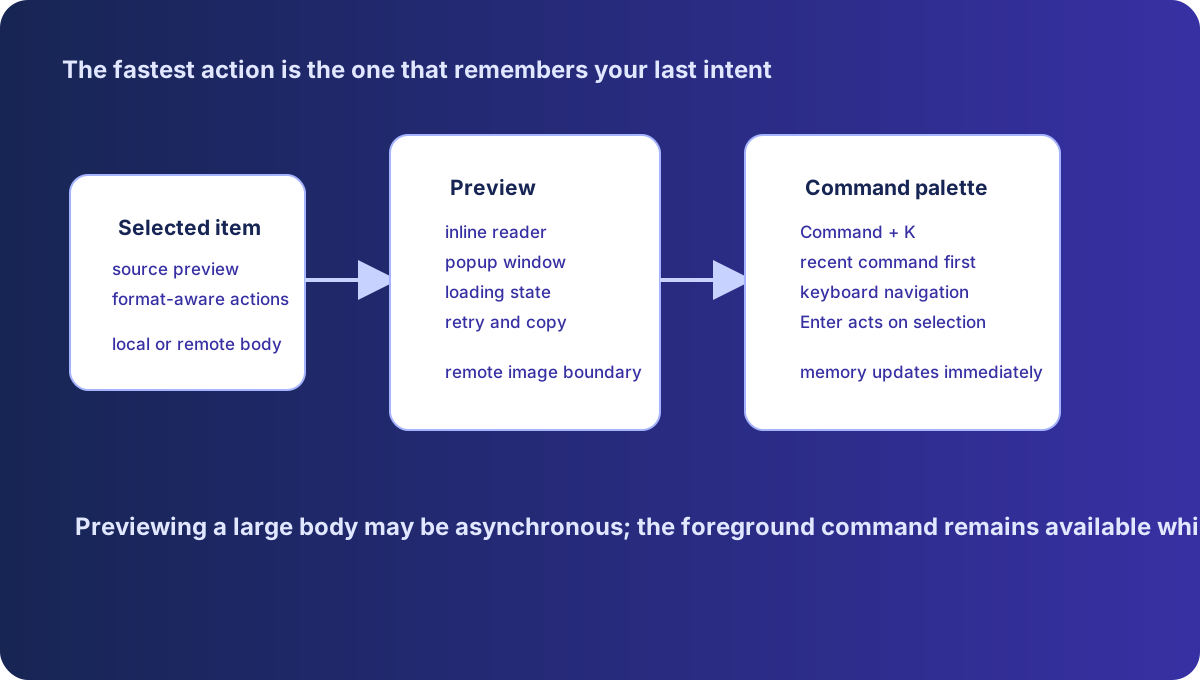
The voice panel and the clipboard panel are one surface wearing two geometries: the voice hotkey keeps recording state intact and just re-lays-out the panel bottom-center. From the voice layout, the panel hotkey returns the panel to its normal shape instead of hiding it; only from the normal shape does the hotkey hide it. That is what keeps two similar presses distinguishable.
The complete default key tables
One thing to understand before rebinding: a binding has three states. Unconfigured means the product default applies; explicitly cleared means the UI shows "disabled" and the key does nothing; anything else is your own combo. So "this key stopped working" has two answers, cleared or replaced, and the "current" column in the settings list always shows the binding actually in effect.
Global keys (work in any app; macOS Option maps to Windows Alt):
| Action | macOS | Windows |
|---|---|---|
| Global copy (capture selection) | Cmd+Shift+C | Ctrl+Shift+C |
| Global cut (cut and capture) | Cmd+Shift+X | Ctrl+Shift+X |
| Global paste (newest item) | Cmd+Shift+V | Ctrl+Shift+V |
| Bring Syzygy to front | Cmd+Shift+H | Ctrl+Shift+H |
| Toggle the Quick Panel | Option+Shift+V | Alt+Shift+V |
| Quick Panel direct tab (AI by default) | Option+Shift+U | Alt+Shift+U |
| Voice input | Option+Shift+R | Alt+Shift+R |
| Quick sync | Cmd+Shift+K | Ctrl+Shift+K |
| Pull latest pending content | Cmd+Shift+S | Ctrl+Shift+S |
| Pinned quick paste (ten slots) | Ctrl+Option+0-9 | Ctrl+Alt+0-9 |
Quick Panel in-panel keys (defaults, all rebindable):
| Action | Key |
|---|---|
| Move up / down | ↑ / ↓ |
| Jump by step (default 5) | Shift+↑ / Shift+↓ |
| Primary action (paste / open detail) | Enter |
| Alternate-format paste | Shift+Enter |
| Move to trash | Delete |
| Toggle selection | Space |
| Expand item | Shift+Space |
| Open viewer / close viewer | Shift+→ / Shift+← |
| Switch files in a file item | Ctrl/Cmd+↑ / Ctrl/Cmd+↓ |
| Focus search | Ctrl/Cmd+F |
| Command palette | Ctrl/Cmd+K |
| Translate item | Ctrl/Cmd+T |
| OCR (image items) | Ctrl/Cmd+O |
| Edit item | Ctrl/Cmd+E |
| New item (prompts, tags) | Ctrl/Cmd+N |
Panel appearance has its own settings: opacity from 1 to 100 percent, an option to follow the mouse's screen on multi-monitor setups, and optional glass blur (a visible cost on some hardware).
When a shortcut does nothing, check three things
Permission. On macOS, global shortcuts and paste injection both hang off the accessibility permission. Look at the lock icon in Settings → Desktop Integration: orange means the grant lapsed; click it, re-grant, and confirm green. OS updates occasionally reset this class of permission, and it is the first suspect when every hotkey dies at once.
Conflict. Another app claimed the combo. The signature is one dead key among working neighbors. The classic source is Windows system shortcuts: to use Win+V for Syzygy, run "replace system Win+V" in shortcut settings. It registers the key as disabled for other apps and briefly restarts the taskbar and desktop, without deleting Windows' own clipboard history. If the system panel still pops up afterwards, turn clipboard history off under Settings → System → Clipboard. Note the takeover only covers bare Win+V; combos like Win+letter are already handled by Syzygy's native hook and never need it.
Not running, or disabled. Global keys exist because the running app registered them; quit Syzygy and they are gone. A binding cleared to an empty value shows as disabled and stays silent until you record a new combo. One related switch, "capture via hotkeys only", changes how copies are captured and has nothing to do with whether keys respond, so do not conflate the two when diagnosing.
If all three check out and a key still fails, compare what you pressed during Record against the binding the app displays as current; a mismatch means the rebind never saved.
One last note on the two tables: macOS Cmd corresponds to Windows Ctrl, and macOS Option corresponds to Windows Alt. The app stores platform-neutral bindings and renders them per platform, so switching between the two systems is a reading exercise, not relearning. To verify any row of this article, open the shortcuts section of the Plugins page, where every binding's current value is listed. If the app is not installed yet, start with the install and first-run guide and come back to the tables.
Frequently asked questions
A Syzygy shortcut does nothing. What should I check?
Three causes, in order: the macOS accessibility permission lapsed (the lock icon in Settings → Desktop Integration turned orange), the combo is claimed by another app, or Syzygy is not running or that binding was set to an empty value and shows as disabled.
Where do I change shortcuts?
The shortcuts section of the Plugins page. Hit Record and press a new combo to rebind, or Disable to clear a binding. The pinned quick-paste modifiers live in the same place.
What is the difference between Enter and Shift+Enter in the Quick Panel?
Enter performs the item's primary action, which for clipboard items means pasting as-is. Shift+Enter pastes an alternate format: path items paste as files, rich text and Markdown paste as plain text, SVG pastes as a PNG image.
Can Syzygy use Win+V on Windows?
Yes, but it needs the 'replace system Win+V' action in shortcut settings first. It writes a registry entry and briefly restarts the taskbar and desktop. Your Windows clipboard history is not deleted.