It is 11 a.m. On your office Windows desktop, a coworker is screen-sharing a service log. You screenshot it, planning to paste the key error line into a search box from your MacBook tonight. On the commute, you also want to look up the flight number you copied on your Android phone yesterday.
Each step eliminates a tool. Win+V stops at step one: the built-in Windows clipboard history is free and instant, but it lacks text recognition for screenshots, keeps roughly 25 items, and only syncs between Windows PCs signed into the same Microsoft account. Ditto swallows enormous history, but it is a Windows-only tool and cannot complete phone sync. On the Mac side, Maccy and Paste are the common answers. Maccy is fast, light, and open source; Paste has the most polished pinboards and iCloud sync. Both stop at the edge of Apple hardware. Universal Clipboard looks the most magical of all, and it works only between Apple devices, carries exactly the latest thing you copied, and keeps no history at all.
This article starts from real situations. Look at these six problems from real work:
- Where does each tool feel at home;
- how much history the clipboard holds, and for how long;
- how cross-device sync works;
- how screenshots and files are supported;
- what you stored, you should be able to find again;
- where the privacy line sits, and how AI integration works.
We will not skimp on describing what the existing tools do well; prior good work is what new products borrow, reference, and build on.
Each tool's home turf
Win+V's value is that it costs nothing. It ships inside Windows 10/11, a shortcut press pops up the history, pins the entries you reuse, and cloud-syncs between your Windows PCs on a Microsoft account. If you paste a dozen links a day, this is the finish line, and any extra install is overhead.
Ditto is the veteran open-source option on Windows. Its history is effectively unbounded, it handles images and files, and two Windows machines running Ditto can sync over the LAN. For heavy users who never leave Windows, its history depth still has few rivals.
Maccy takes the minimalist path on macOS: open source, fast, nearly weightless, one search box over the list. It deliberately does not do sync or AI, and the people who love it love it for exactly that restraint.
Paste is the subscription product, with clients on macOS and iOS. Pinboards gather copied material by project, iCloud keeps them in step, and rich previews are refined. Inside a pure Apple setup it is the most complete commercial option.
Universal Clipboard deserves its own row. With one Apple ID, you copy on the iPhone and paste on the Mac; no other tool matches that seamlessness. It transfers recently copied content between nearby Apple devices, and Apple also supports copying entire files between Macs. It is not a persistent clipboard history. Apple documents the requirements and supported content.
All five are competent inside their ecosystem. Trouble starts with the word "cross" and with content types.
How much history can the clipboard hold, and for how long?
Win+V caps out around 25 items, newest overwriting oldest except for pinned ones. That is fine for a verification code with a three-minute lifespan; it will not return last week's config snippet.
Ditto, Maccy, and Paste all store more, but capacity answers half the question. The other half is provenance: which device did this come from, which application, when. Most history lists show the content and gloss over the trail.
Syzygy keeps the last 100 items for 30 days by default, both adjustable. Every entry carries its source device, source app, and timestamp. You can tag entries manually or let AI tag them (bring your own key; it burns tokens). Favorites archive the long-lived stuff; pins sit at the top of the list and the quick panel, with drag-to-reorder. Deletions go to a trash that keeps entries for 7 days before a permanent purge.
Identity is part of the design, too: identical content is deduplicated so repeated items do not take up space twice, and every entry's summary always carries the source device and sequence number, so you always know which device it came from. Processing you do locally (say, generating a new entry by Base64-decoding an old one) records where that new entry came from: which record, and which rule produced it. That record stays on your device rather than being broadcast.
The raw numbers matter less than whether the list is worth revisiting. When every entry shows its source, takes tags, and can be pinned, the list behaves like a small database instead of a temporary queue.
How cross-device sync works
Cross-device clipboard needs keep growing, and the products on the market fall into a handful of implementations.
Universal Clipboard: syncs only the latest item, and only between Apple devices. Phone Link: Windows and Android can transfer to each other; iPhone is not supported. Ditto's network sync: two Windows machines on a LAN. Paste's iCloud sync: Apple devices only. In all of these cases, syncing requires the user's devices to live in one ecosystem, which is a real limitation.
The common workaround today is combining several of these features at once: Universal Clipboard for the Apple pairs, Phone Link for the Windows-Android pair, and WeChat file transfer or emailing yourself for the rest. Combining them does relay data across ecosystems, but the cost is heavy: many devices and messy entrances. Three inboxes, three histories that cannot see each other, and a small routing decision every time you copy something.
Syzygy offers a single channel that does not depend on any OS vendor's account system. Paired devices transfer data P2P, and clipboard entries have no centralized cloud storage. Daily behavior matches intuition: within thresholds, you copy on device A and device B receives the full content immediately, with the data traveling only between the two ends; offline, each device keeps its local history, and after reconnecting the two sides reconcile through a bounded catch-up. Pairing is a two-sided process: you initiate from the peers screen, both devices confirm trust locally, and only then does sync begin. The transport is encrypted: payloads use XChaCha20-Poly1305 stream encryption, and each entry summary carries an Ed25519 signature so the receiving side can verify integrity.

Sync policy goes finer than an on/off switch. Each paired device gets its own mode: realtime mode auto-syncs full content up to 50 MB by default; on-demand mode auto-pulls up to 5 MB by default; both thresholds adjust from 0 to 200 MB. Anything larger arrives as a summary first, with type, preview, size, and time all in the summary, and whether to materialize the body is your call. When an offline device comes back, it catches up on the last few summaries only (3 by default, adjustable 1-10) instead of flooding itself with everything it missed. Devices can carry a priority, so the work laptop syncs and surfaces before the phone. Failed downloads retry automatically, and the final truth is whether the file landed locally.
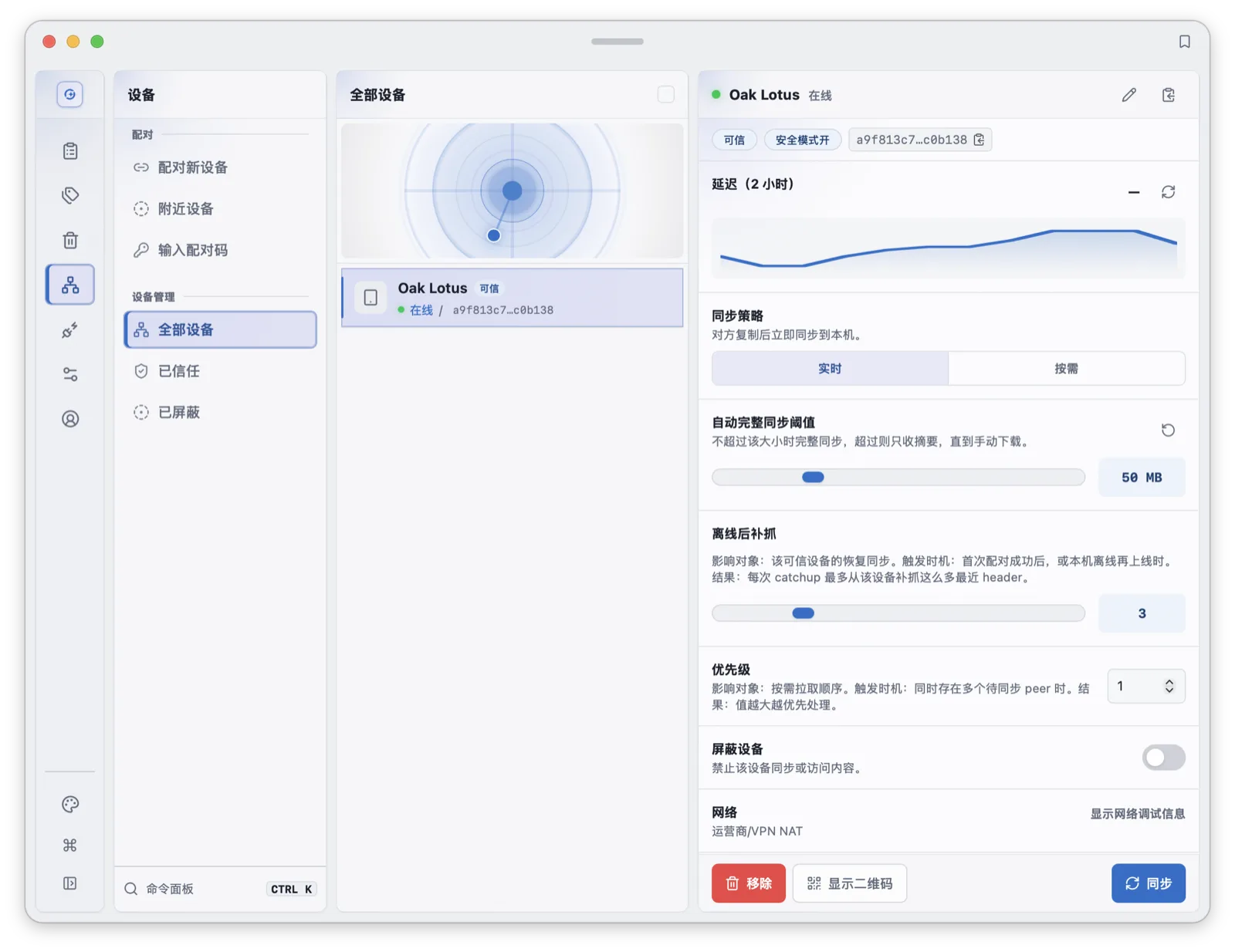
Syzygy's business plan: core clipboard sync is free, but free-to-free pairing is not; Pro is a per-seat subscription, one seat links one Pro PC with up to two free phones, Pro-to-Pro sync is unlimited, and unbinding a device frees the seat immediately. If all you need is two Apple devices talking, every bit of this is overhead. The channel earns its keep in proportion to how omnivorous your device list is.
flowchart TD
    A["Device A copies content"] --> B{"Is a Pro/Team trust relationship established?"}
    B -->|"No"| C["Stays in the local workbench"]
    B -->|"Yes"| D["Encrypted locally, paths probed"]
    D --> E{"Direct connection possible?"}
    E -->|"LAN / NAT traversal"| F["Direct P2P transfer"]
    E -->|"Direct fails"| G["Encrypted relay: the server only moves ciphertext"]
    F --> H["Device B decrypts and writes to history"]
G --> HHow screenshots and files are supported
To the user, copying is a single simple action; at the OS and software level it is far more complicated than it looks. Copy a web paragraph and the clipboard holds both HTML and plain text; copy a file in Explorer and it holds a file reference. Most clipboard managers take one or two of those formats seriously.
Microsoft documents a 25-entry local history with text, HTML, and bitmap support, limited to 4 MB per item. Keep local format support separate from cloud sync. Compare image and file handling using your own files; a list preview alone does not establish whether a tool extracts or searches their contents.
Syzygy treats types more like a workbench. Web content copied from a browser keeps both formats: the preview renders the HTML, a derived plain-text fallback serves clean text, and image-only HTML keeps its original markup so an alt attribute can never replace the item. SVG code or content copied from Figma renders into a visible image; you can "copy as image" straight into a chat app, or switch to source mode for the raw SVG. Image entries carry built-in OCR; the recognized text becomes copyable in one click. PDFs get text-layer extraction, with OCR for scanned pages. .docx, .xlsx, .pptx, and .zip previews work on desktop; that part is a Pro/Team capability and the free tier shows a clear prompt. Text beyond a threshold (20 MB by default) is converted into a file entry so it cannot bloat the history list.
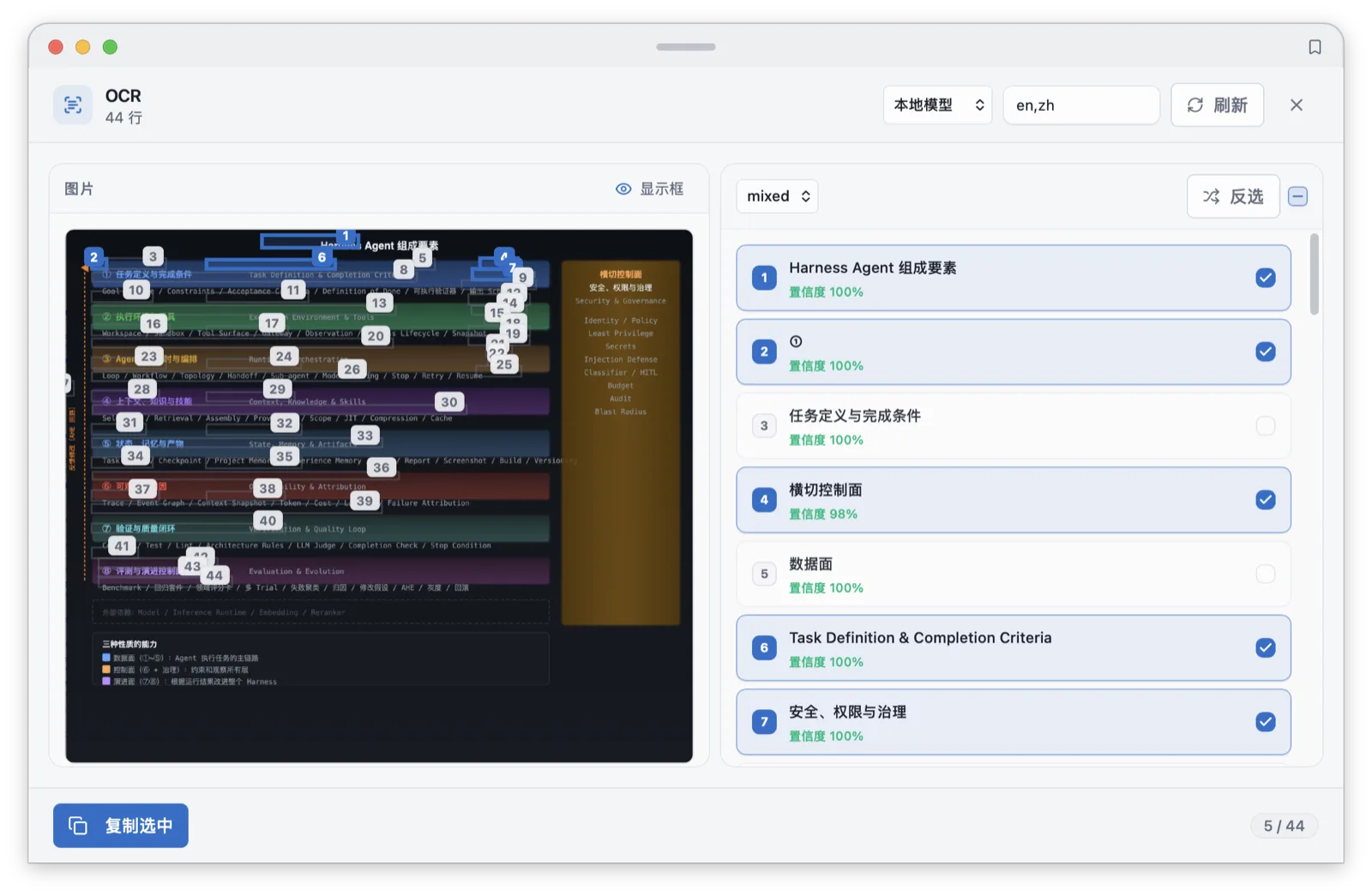
One PDF shows the difference concretely. In Win+V it does not exist. In most managers it is a filename. In Syzygy, the text layer of the first 64 pages is extracted into the search index, scanned pages go through OCR, the body stays on the source device by default, and the other end sees a summary before deciding to pull the full file.
The distance from history to paste
The hottest path in any clipboard manager is "find the entry, paste it here." The length of that path decides whether the tool saves time or adds a step.
Win+V and Maccy both give you a panel where arrows and Enter paste the selection, and that is already fast. The gap opens around actions beyond pasting. Want to OCR a screenshot from your clipboard history: Win+V has no such action. Want to edit text stored in the history and then paste it to the target: most tools do not support that, but Syzygy does!
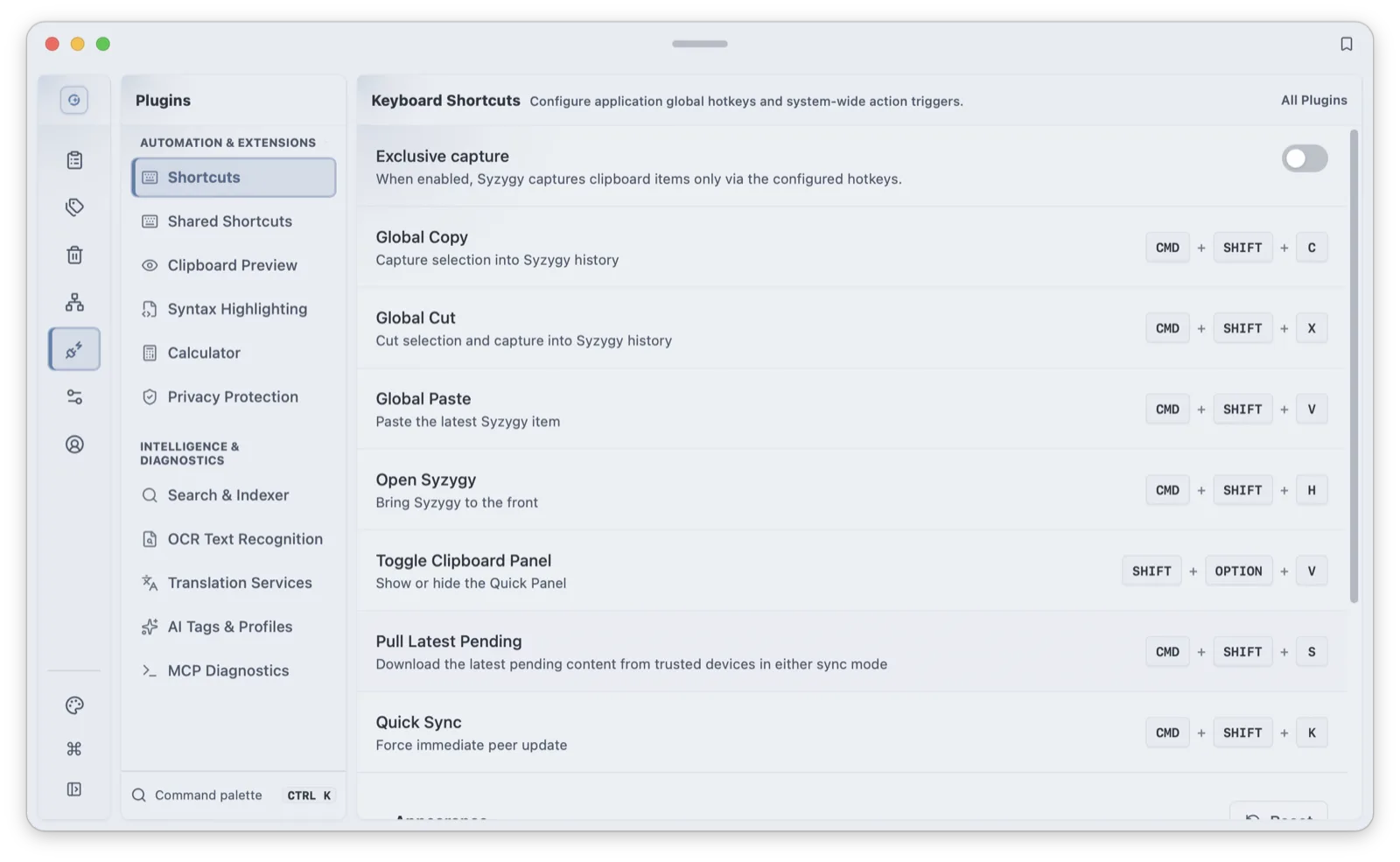
Syzygy's quick panel opens with Option+Shift+V, arrows move, Shift+Right expands a full preview, Esc closes. Every processing action has a direct shortcut: OCR is Cmd/Ctrl+O, translate Cmd/Ctrl+T, edit Cmd/Ctrl+E, command palette Cmd/Ctrl+K, new entry Cmd/Ctrl+N. Sync has shortcuts too: Cmd/Ctrl+Shift+S pulls the latest pending items, Cmd/Ctrl+Shift+K triggers a quick sync. Pins support number-key pasting: on macOS, Ctrl+Option plus a digit pastes that pinned slot directly. Any entry can also pop out into a floating window with adjustable opacity and always-on-top, which turns "paste it" into "keep it on screen and copy from it."
What you stored, you should be able to find again
A history list is worth exactly as much as its retrieval. Scrolling works under 100 items; past that, it is a memory game.
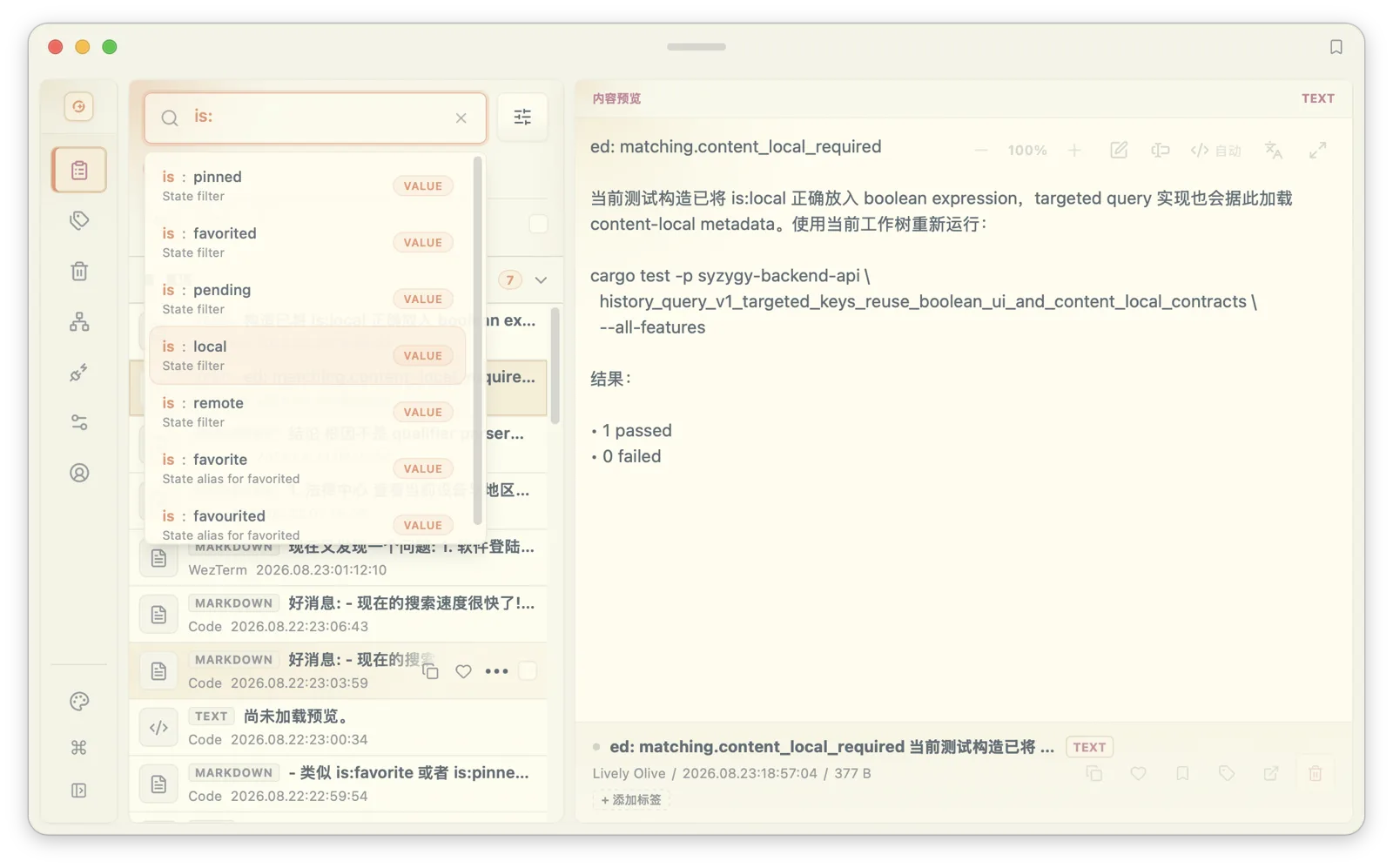
Syzygy's search has three layers. The first is keywords plus qualifiers: kind:image for images, source:chrome for the source app, tag:work for tags, date:2026-09 or created:2026-09-27 for time, peer: plus a device ID for origin, and qualifiers combine. The second layer is OCR text from images and PDFs: the error in a screenshot or the conclusion on a whiteboard photo enters the index and can be found again just by searching the text. The third layer is semantic search: when keywords miss, vector retrieval pulls fuzzy descriptions like "that database connection string from last week" toward the right entries, and the two rankings merge through reciprocal rank fusion (RRF). All of it runs locally by default; the index caps at 5,000 entries with 512 KB of indexable content per item, and entries that rotate out of the index stay in history under tags and pins.
Maccy emphasizes fast local history search. Paste documents history search, Apple-device sync, Apple Intelligence suggestions, and connections to AI tools. This article does not establish the absence of OCR or other features in every competing version. Test screenshot-text retrieval with the same sample when comparing tools.
Where the privacy line sits
The clipboard is one of the most privacy-sensitive places in any OS: verification codes, passwords, bank card numbers, and API keys pass through daily. Choosing a clipboard manager means choosing who is allowed to look.
Cloud history and nearby-device clipboard transfer have different storage and transport boundaries. Do not assume Universal Clipboard is a cloud history database. Paste states that content stays on the device and in private iCloud, rather than its own servers. Review each product's current documentation and settings before comparing privacy guarantees.
Syzygy's defaults come in two layers. The first is display masking: sensitive-content detection ships enabled across 12 categories:
- ID numbers, phone numbers, OTP codes, emails;
- bank card numbers (Luhn-validated), API keys, activation codes;
- Ethereum and Bitcoin addresses;
- EVM and Bitcoin private keys, BIP39 mnemonic phrases.
Matched content renders blurred in the UI while copying stays unaffected, and each of the 12 rules can be switched off individually. The second layer is sync blocking, off by default: flip it on, and anything matching a sensitive rule never leaves the machine. Masking renders sensitive content blurred on screen so it is visible but unreadable; blocking keeps it from leaving the device outright. The two switches are independent.
Two more lines of defense sit at the source. Password managers and similar apps can join a capture deny list, so content copied from them never enters history at all. App lock ships off; enabled, it locks Syzygy when the system locks and allows unlocking with device credentials. The remaining defaults lean conservative too: OCR, search, and AI remote calls are off by default, so processing happens on-device, and AI translation and tagging run on your own keys with your chosen providers. The point of defaults like these is that safe behavior does not require reading a tutorial first.
How AI integration works
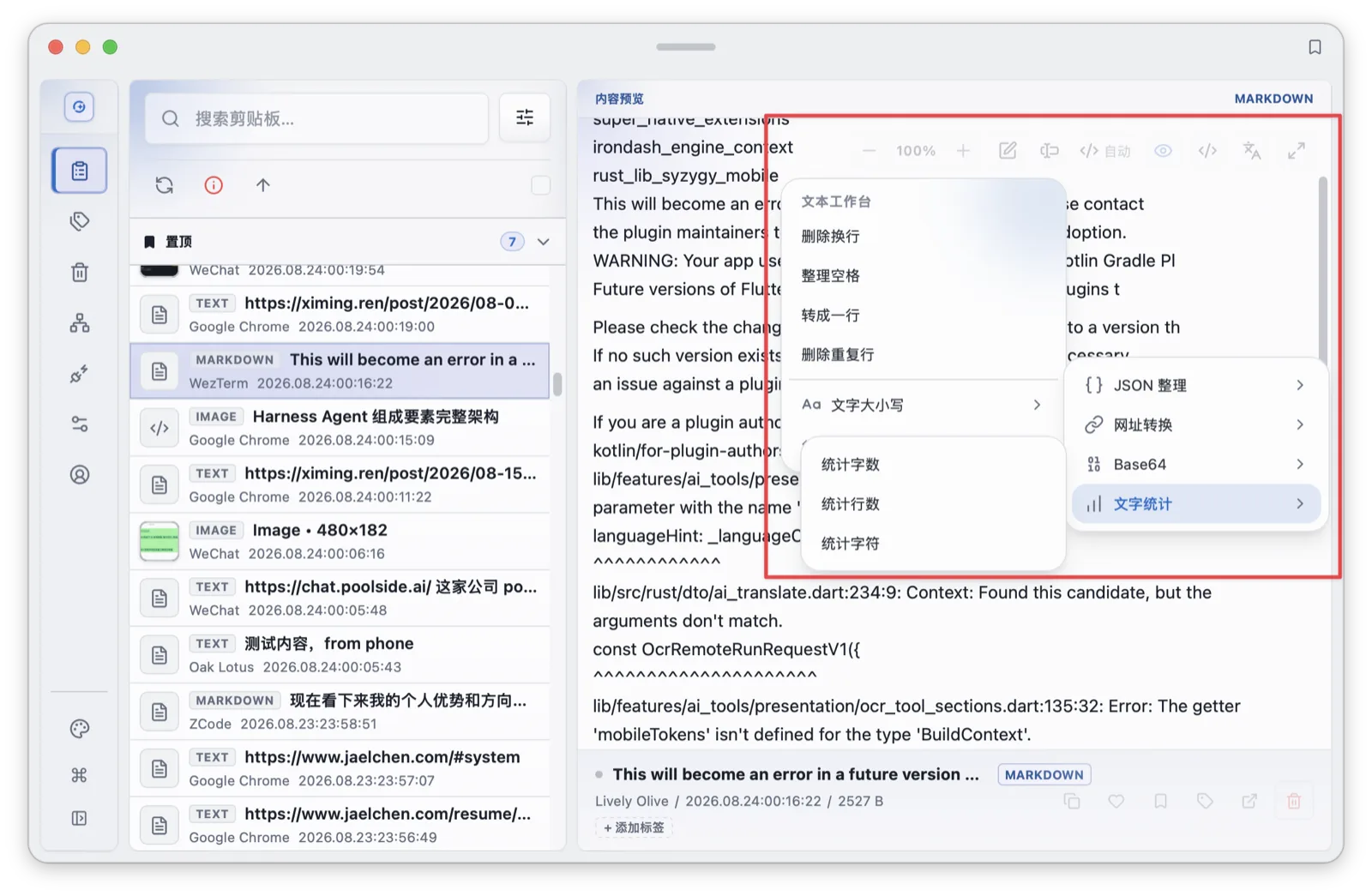
Storage is half the job. Syzygy's text workbench ships 16 built-in rules in four groups:
- cleanup: collapse spaces, remove line breaks, deduplicate lines;
- casing: upper, lower, capitalize;
- encoding: URL and Base64 encode/decode, JSON pretty and compact;
- counting: words, lines, characters.
A processed result becomes a new clipboard entry; the original stays in history. Translation connects to multiple engines (Baidu, DeepL, Google, Tencent, Youdao, plus AI endpoints), all through BYOK configuration.
The voice input and local LLM added in 1.2.0 are not, by themselves, a reason to pick a clipboard manager, but they signal direction. Voice transcription defaults to local engines (Silero VAD for streaming segmentation, with multi-engine fallback), and the local LLM runs GGUF models in-process via mistral.rs, bound to an OpenAI-compatible endpoint on loopback. The clipboard is the entrance; the processing tries to stay local. Weigh that orientation as you like.
Decision rules
flowchart TD
    A["Your device list"] -->|"Apple only"| B["Universal Clipboard or Paste is enough"]
    A -->|"Windows only"| C{"Heavy history needs?"}
    C -->|"No"| D["Win+V is fine"]
    C -->|"Yes"| E["Ditto"]
    A -->|"Mixed Windows, macOS, phones"| F{"Need image text, file preview, privacy masking?"}
    F -->|"Short text only"| G["An in-ecosystem tool is fine"]
    F -->|"Yes"| H["Syzygy: four platforms, encrypted P2P sync"]
The same rules in prose. A dozen pastes a day on a single ecosystem: Win+V on Windows or Universal Clipboard on Apple is the optimal answer, and paying for unused capability is waste. Heavy history on Windows, no cross-platform needs: Ditto's depth has no rival. An Apple household that wants organization and previews: Paste's pinboards justify the subscription. A Windows-plus-Android pair: Phone Link covers the paste if you accept no history. A device list spanning Windows, macOS, Android, and iOS, with screenshots, files, and code in the mix, and a real opinion about where that content travels: this is Syzygy's home ground: four platforms today, with Linux supported but still less stable.
Start with one action: write down the last moment the clipboard failed you, then ask each section above whether the tool you are considering handles that step. For pairing and threshold setup after installing, see the install and first-run guide and P2P pairing and sync; for the full search breakdown, see indexing, search, and OCR.
Frequently asked questions
Can Windows clipboard history (Win+V) sync across devices?
Windows can sync copied text between PCs signed into the same account. The local history supports text, HTML, and bitmap images up to 4 MB per item; that format limit is not a promise that every format syncs.
Can Maccy or Ditto sync with a phone?
No. Maccy is a macOS-only utility and Ditto's network sync only works between Windows machines running Ditto. Neither has a mobile client.
What does the free tier of Syzygy include?
Clipboard history, search, the quick panel, and OCR are free. Free-to-free device pairing is not; document preview and similar upgrades belong to Pro/Team. Pro is a per-seat subscription, and one seat links one Pro PC with up to two free phones.
Can text inside a screenshot be searched?
Yes. Syzygy runs local OCR on images and the recognized text goes into the local search index. You can combine qualifiers like kind:image, and semantic search can retrieve screenshots from fuzzy descriptions.