The name Syzygy comes from Greek: three celestial bodies aligning in one gravitational system. The product aligns devices the same way. PRO changes the boundary of pairing. The free tier registers, signs in, and keeps local clipboard history, and a free phone can even pair with one PRO computer; free computers do not pair at all, and neither do two free devices. PRO unlocks desktop pairing with larger relation quotas, and removes free-tier limits like the 60-second voice-input recording cap.
This article walks the whole thing in the order you would actually do it: how an activation code becomes PRO entitlement on a device, what pairing establishes under the hood, and what each sync parameter (50 MB, 5 MB, 3 items, priority) actually controls. A troubleshooting section collects the most common failure shapes. By the end you should be able to answer two questions: which layer a failure on screen happened at, and why a list item shows only a summary with no body.
Activation: from a code to an entitlement on your device
The first half happens in the browser, in five steps:
- Sign in to your Syzygy account.
- Open the activation page, enter the activation code, and click redeem.
- A confirmation dialog lists the entitlements; verify them.
- Click confirm to redeem.
- Once activation succeeds, open the seats page: the entitlement appears as a seat.
The second half is seat assignment. The rightmost column of each seat row holds an assign button; pick the client that should receive PRO and confirm. Seats and clients are deliberately separate: the entitlement lands on the seat first, assignment decides which client gets it.
One last step on the device: open the client, go to the account page, press refresh. On PC the refresh button lives in Settings, account page; on mobile, top-right of the account page from the sidebar. The step exists because the authoritative entitlement state sits on the server. After a successful refresh, pairing unlocks. If an entitlement lapses or roles change later, existing pairs and sync become restricted while local features keep working.
Pairing: what happens after you click initiate
The UI flow is short, four steps:
- Open the Peers pairing screen.
- Choose pair new device and select the other device from the discovered candidates.
- Enter the other device's detail column.
- Click initiate pairing and wait for confirmation.
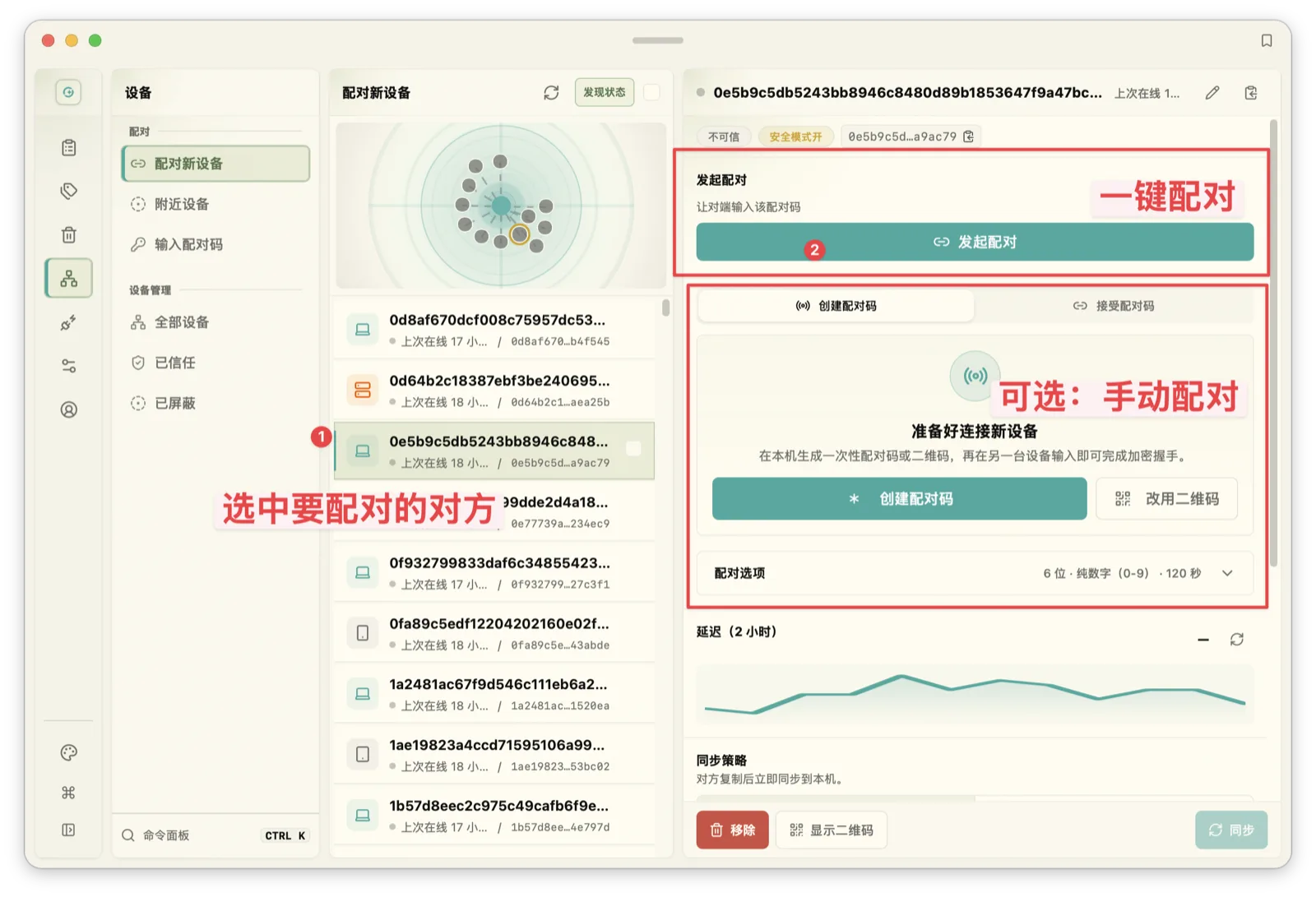
The pairing session runs a small state machine: waiting, pending confirmation, confirming, then a terminal state, with each state permitting exactly the actions that belong to it. The initiator generates a one-time pairing code (6 characters, 120-second TTL by default); once confirmed, both devices exchange security material, write local trust records, and import an encryption key. Trust landing is three concrete actions: write the peer into the trusted table, fill in the device name if the peer has none, and import the crypto key carried by the pairing token. The token is a structured bundle (peer identity, device name, role hint, reachable address, key id and key material, an entitlement ticket), each field verified before anything persists.
Cancellation, rejection, and failure all have explicit paths: the session releases its resources at the current phase and reports a diagnosable reason. A failed pairing never masquerades as success, and retries spawn fresh sessions rather than reusing terminated ones. Trust records persist across restarts and re-logins; removing or blocking the peer in the device list undoes them.
Pairing is not syncing. Four conditions must hold before any content moves: the device role combination is allowed, the cloud-side pairing authorization verifies, both devices have confirmed local trust, and the network actually connects. Missing any one produces no half-paired state and no forced sync. A record in the trusted table proves local security material landed; it does not substitute for the active relation on the server.
Three ledgers, three owners
"Pairing succeeded" spans three owners: the server holds the commercial relation (authorize, activate, release), the pairing backend holds the interactive session (waiting through terminal), and the local node holds encrypted trust (security material on disk, trusted record, runtime ready). The three ledgers advance independently; this is not a cross-service atomic transaction. A window exists where the local side trusts and the server has not finalized; retry semantics handle it, and the UI never promotes the relation on your behalf. Recovery is likewise not assumed total: each phase's automatic compensation is verified separately, so a stuck middle state converges by retry rather than by a rollback nobody wrote.
There is also a timeline on the server. Authorizing creates a relation in the authorized state; when the local flow completes, the server finalizes it to active and re-checks both sides' quotas. Authorized is not active, and before active there is no sync eligibility. Releasing frees the authoritative relation, and every action verifies account and device ownership, so holding a relation id buys nothing on someone else's devices.
Who may pair with whom
Role decisions belong to the server's authoritative evaluator; clients never self-authorize from a local PRO flag. The matrix:
| Combination | Result |
|---|---|
| PRO computer ↔ PRO computer | Allowed, relation count uncapped |
| Free phone ↔ PRO computer | Allowed, up to 1 relation on the phone, 2 on the computer |
| Free computer ↔ anything | Rejected |
| Free phone ↔ free phone | Rejected |
| Free phone ↔ PRO phone | Rejected |
"Quota" here caps relations, not traffic: a free phone maintains at most one PRO computer, a PRO computer serves at most two free phones, and PRO-to-PRO pairing is unlimited. New pairings require a live authorization service; a cached entitlement projection is never an offline authorization. The converse also holds: a denied pairing or denied sync does not stop the local node, and everything local keeps running.
Pairing establishes encrypted trust
The exchange carries more than names and addresses. Alongside the trust record, both devices trade an encryption key: clipboard bodies are symmetrically encrypted (XChaCha20-Poly1305) with it before they touch storage or transport, and the key never reaches a third party.
Two details deserve the ink. First, the nonce derives from the blake3 digest of the plaintext, so the same plaintext under the same key always yields the same ciphertext, keeping content-addressed deduplication working: one screenshot sent to three devices still lands as one encrypted copy on disk. The accepted cost is that equal plaintexts are recognizable as equal, tolerable for a personal two-or-three-device mesh. Second, every ciphertext header records its key id, so rotation never strands old data, and the rotation negotiation itself travels in an X25519 ephemeral envelope, encrypted on its own way through.
Trust has a deny side. An untrusted device receives only a basic hello; delta summaries, content metadata, and body fetches all go unanswered. When the peer copies something new, the summary header rides a broadcast channel only trusted peers may ingest, so strangers never see so much as the rhythm of your clipboard.
The transport is a separate encryption layer again: connections between devices are end-to-end encrypted QUIC. A fair question is why the key layer matters when QUIC already encrypts; the answer is coverage. QUIC protects data in flight; the key layer keeps content ciphertext at rest, including the deduplicated copy on disk. The relay forwards encrypted traffic and coordinates NAT traversal, sees no content, and stores no application state. On direct LAN paths and public relay paths alike, bodies exist only as ciphertext.
Path probing: direct, relay, and what the diagnostics actually measure
Multiple routes may exist between two devices: direct over the LAN, direct through a VPN or the public internet, or a fallback over a relay. Discovery lists candidates, but "a Tailscale address appears in the list" and "traffic flows over Tailscale" are different claims, and the diagnostics page keeps them separate: the actual route is evidenced by the selected path of an authenticated connection, while candidates are dialing hints and identity is carried by the endpoint id. Route classes are evidence-based too: selected direct, selected relay, other, and no-telemetry are labeled distinctly, and an address guess is never promoted to a selected path.
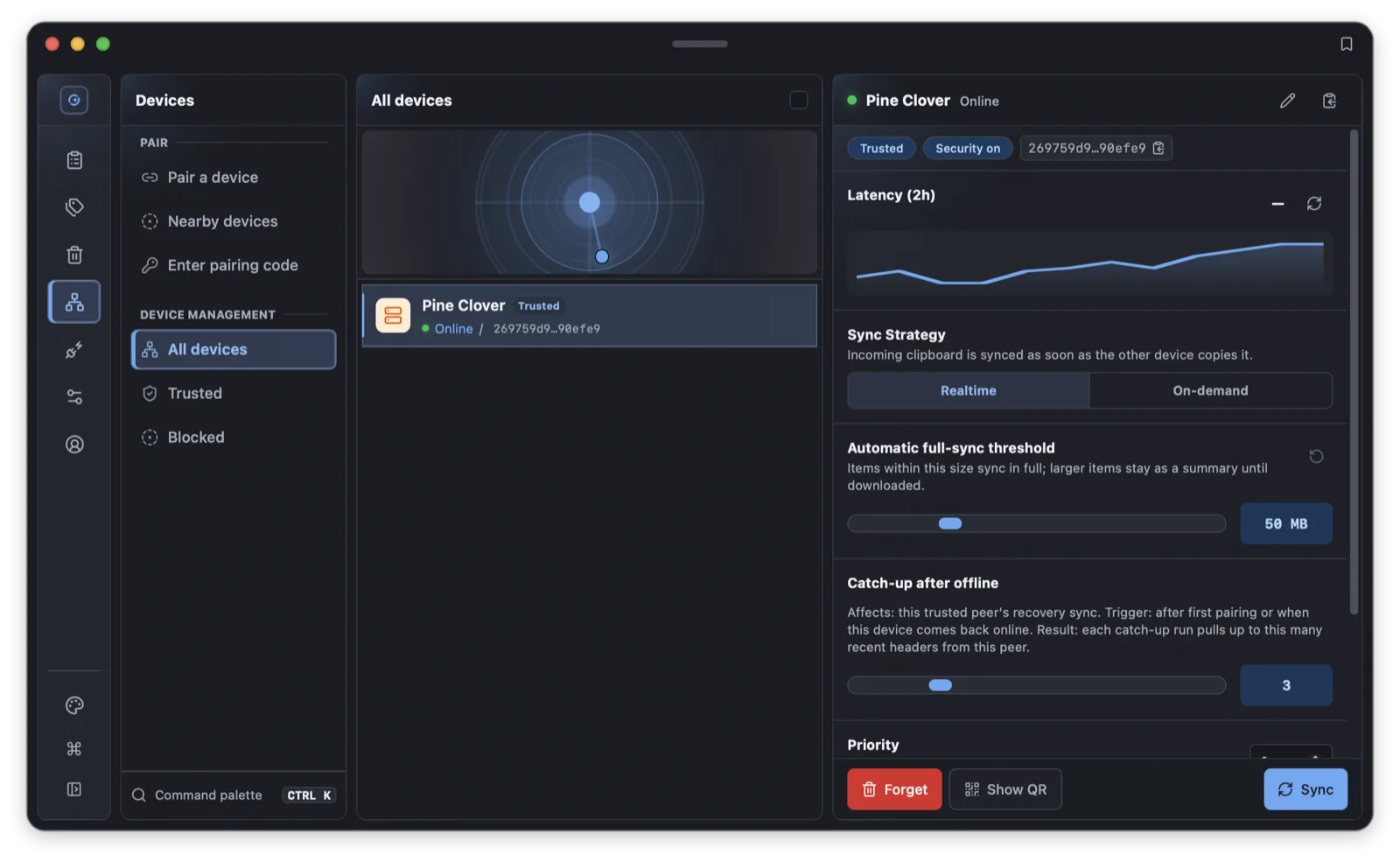
Route selection belongs to the connection layer: direct first, relay on failure, with no serial chain of "try LAN for 3 seconds, then public for 3, then relay". Probing is budgeted: 8 concurrent globally, 2 per device, 8 candidates per round, 8 seconds per device, so UI refresh storms cannot amplify probes; after a network change, stale probe results invalidate instead of overwriting the new route state. Control messages, body transfers, and discovery each reuse their own connections, so one failing link does not drag the others down.
The latency numbers come from control-channel round trips, kept in memory for 2 hours and at most 720 samples, wiped on restart. That is neither an ICMP ping nor the time an item takes to become pasteable there. Exports contain diagnostics data only, never secrets or clipboard content; missing telemetry is reported as missing, not papered over.
Sync is two layers: summaries first, bodies by policy
Every sync follows the same order: content summaries first, then a decision about the body. Summaries go first because they are small: one record with the content type, a preview, and the creation time arrives fast and tells you the other side copied something. The full body or file travels by policy rather than by force, and the landing action is called materialization: a remote record becoming complete, pasteable content on your device. An item therefore has three distinguishable states: summary known, body pending, materialized locally. The UI keeps "I can see it" and "I can paste it" apart instead of equating connectivity with delivery.
Each trusted device carries its own sync mode. Realtime is the default and auto-pulls full content up to a 50 MB threshold, adjustable from 0 to 200 MB; On-demand drops the default to 5 MB for metered networks or tight disks. Both auto-sync; the threshold is the only number that differs. Over-threshold content shows as a summary, manual download works in either mode, and download is a trigger rather than a third mode. Large files and weak links queue in a background transfer lane, content arrives as encrypted blocks, failures retry automatically, and the verdict that matters is whether the device holds the complete file.
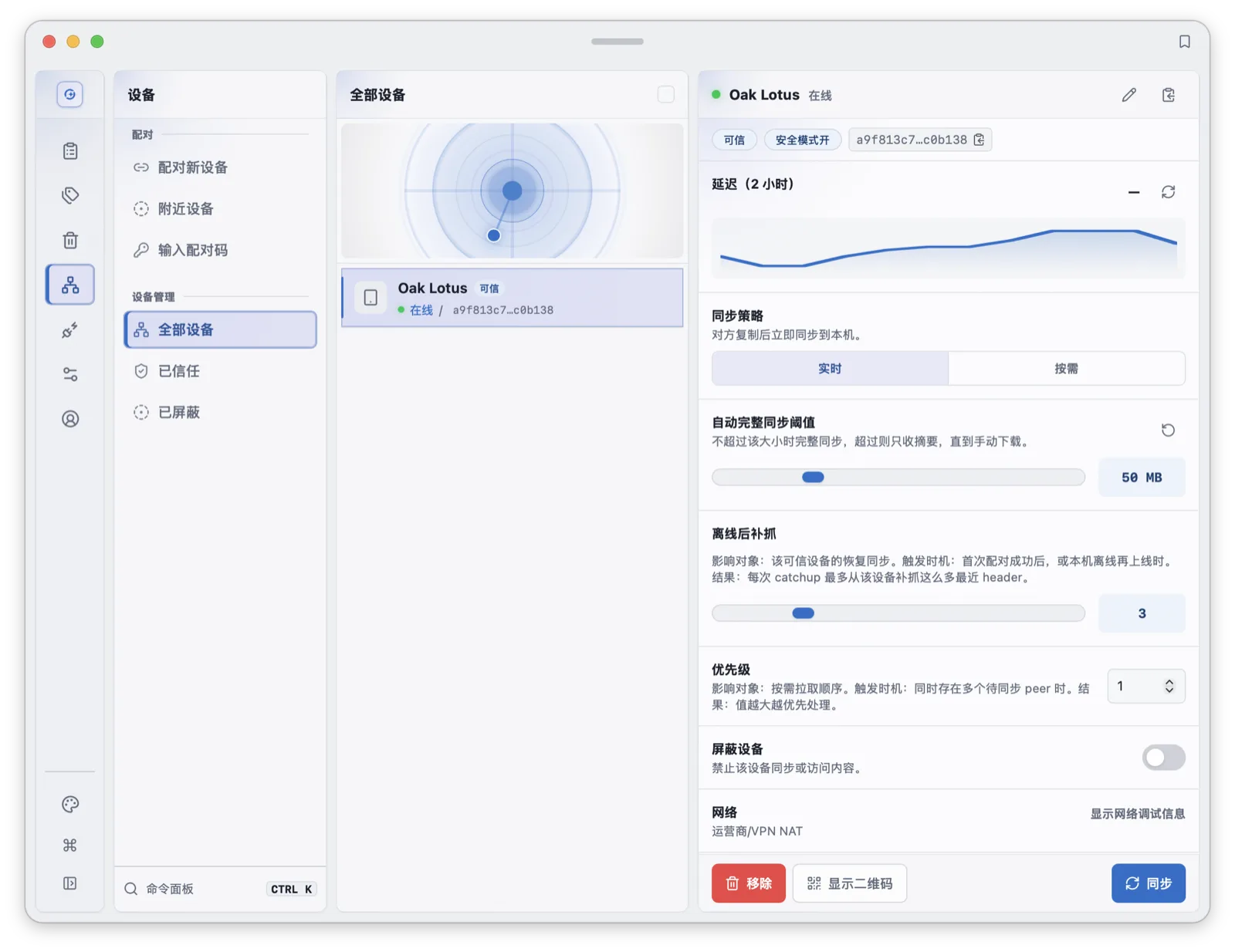
Three more parameters share that page. The catch-up count defaults to 3 and spans 1 to 10, sizing how much a reconnecting device chases. Priority defaults to 1, and higher numbers win: several devices syncing at once move higher-priority data first, with equal priorities ordered by device identity or receive time; a common setup pins the work computer high and the phone low. The block switch defaults to off; on, it severs all sync and access for that device.
The two extremes say what the knob is: 0 means nothing pulls automatically and everything waits for manual download; 200 MB approaches auto-fetch-everything. These settings express the receiving side's appetite; they are not sync permission. Every round still requires the peer trusted and unblocked, the commercial relation valid, and the runtime policy allowing it (low-power, offline, and metered-network gates each apply). Deduplication, budgets, priority, and retries belong to the sync queue, where each download task has its own state and lifecycle; the list's display order follows priority and receive time, and it is neither the order requests were issued nor proof the peer received anything.
Offline and catch-up: why reconnecting brings back only a few items
When a device comes back online after days away, the system does not pour the full history across the link; it fetches the latest N summaries per trusted device (3 by default). The design is deliberate: unbounded catch-up is slow and expensive on weak links and large histories, and the summary-first layer already tells you what you missed, so pull specific items on demand. Catch-up returns summaries only; whether bodies follow is each device's threshold decision. "Sync now" means the same: fetch the latest N summaries per trusted device, not a full alignment.
Two global shortcuts put this at your fingertips: Cmd/Ctrl+Shift+K triggers a quick sync, and Cmd/Ctrl+Shift+S pulls pending downloads. Both are remappable in shortcut settings.
When something goes wrong
Pairing gets no response or is refused. Work out which layer refused: the role combination is not allowed (two free computers, say), the authorization service is unreachable (new pairings need it live), or the network is down. A reachability probe proves only that a connection can be made; connectivity is not permission. Security-mode mismatches also fail to pair, and the error names both the local and remote modes.
An item appears in the list but opens with no body. Normal two-layer behavior: the summary arrived, the body exceeds that device's auto threshold, and the item sits pending. Download it manually; failures retry on their own, and the test that counts is whether the complete content exists locally.
The offline period did not fully sync after reconnecting. By design. Catch-up takes the latest N summaries per device (3 default, 10 max); anything older goes through manual download or Sync now.
Downloads are slow or keep retrying. Large files and weak links queue in the background, and automatic retries are normal transport behavior. The feature is broken only if the complete file never lands locally.
The other device vanished from the list. Check whether you blocked it; a block cuts all sync and access. Then check the network: discovery lists candidates, and actual connectivity needs an authenticated connection. When the node is stopped, proactive probing and diagnostics pause with it.
Pairing succeeded but no content moves. Walk the four preconditions: role combination allowed, cloud authorization passed, both sides confirmed local trust, network connected. The most common gap is a server-side relation that never reached active, or one device still withholding trust.
The list differs between two paired devices. Sync promises summary-first ordering and per-device thresholds, not identical lists at every instant: higher-priority content arrives first, and over-threshold bodies wait pending. Transient differences are normal; a quick sync converges them.
Is the entitlement actually applied? Check two places: the seats page shows the seat assigned to this client, and the account page's refresh completed successfully. New pairings then take the PRO role; existing pairs may restrict if the entitlement lapsed, and reactivating plus refreshing restores them.
Reading the diagnostics. Latency is a control-channel round trip, not end-to-end clipboard delivery time; path types come from the authenticated connection's selected path, not the candidate list's order. If a path looks wrong, check whether a local firewall or corporate network blocks direct connections first, with relay fallback on by default. RTT history clearing on restart is expected.
Parameters and behavior in this article correspond to the 1.2.0 development cycle; available released packages are listed on the download page. First-install permission setup is in the install and first-run guide, all default shortcuts in the keyboard shortcuts cheat sheet, and the mechanics overview of P2P sync in pairing and sync. The full 1.2.0 changes are in the release notes, and the engineering details of the voice pipeline are in how voice input works.
Frequently asked questions
Can the relay server see my clipboard content after pairing?
No. Device-to-device transport is end-to-end encrypted QUIC; the relay forwards ciphertext and stores no application state. Clipboard bodies carry a second layer of encryption with a key that only the paired devices ever received, and content stays encrypted at rest on disk.
What is the difference between Realtime and On-demand sync modes?
Both modes auto-sync; they differ only in the file-size threshold for automatically pulling full content: 50 MB by default for Realtime, 5 MB for On-demand, adjustable from 0 to 200 MB per device. Anything over the threshold syncs as a summary and can be downloaded manually at any time.
If a device was offline for a while, does it sync the entire history when it reconnects?
No. Reconnection fetches only the latest N summaries per trusted device, 3 by default and adjustable from 1 to 10. For anything older, use Sync now or manual download; there is no unbounded full-history catch-up.