You get a paragraph of text in a language you don't read, or an image full of text. Turning it into something you can send takes five steps the traditional way: screenshot it, open an OCR website, open a translation site, copy the translation out, then manually clean up the line breaks. Every step switches windows, and every step hands that content to a third party you know nothing about.
Syzygy compresses the pipeline into one window. Content that is already in your clipboard can be OCR'd, translated, cleaned up in the text workbench, and optionally polished by an AI model. This post walks the four layers in order and the trade-offs behind each, especially on the translation layer: why we make you bring your own key.
A complete run to anchor things: a chat message arrives with a foreign-language manual as a screenshot. Press Cmd/Ctrl+O and local OCR pulls the text out. Press Cmd/Ctrl+T and your configured engine returns a translation. The formatting looks mangled, so in the text workbench you hit "merge line breaks" and "collapse spaces." If you want it rewritten, the AI panel runs it through the model you configured. You never left Syzygy, and the first two steps never touched the network.
The same chain works with a different input: an English ticket description from an overseas customer. Copy it, translate it, pull out the key fields, rewrite it into a Chinese reply on your team's template. Screenshot or text, the pipeline is the same, and that is the point of building it next to the clipboard: anything you copy from any application is in range.
What comes in is what you see
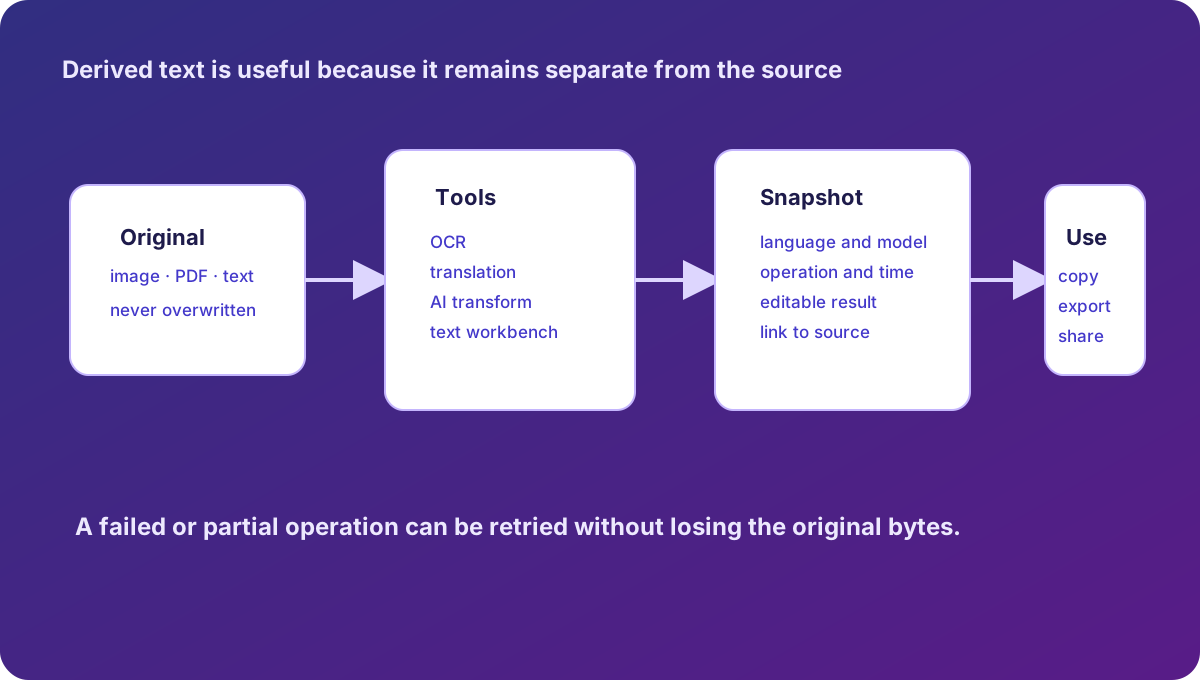
The pipeline starts with what the content looks like when it arrives. Clipboard items come in many shapes, and each shape gets a matching surface; these are the foundation everything else stands on.
Plain text arrives with the workbench tools attached: word counts, space removal, Base64 encoding, JSON formatting. Code arrives with syntax highlighting. Markdown renders as a preview. Images and web images display inline with built-in OCR, and it goes further: SVG code or Figma nodes render into visible images, so you can use "copy as image" to paste the rendered result into a chat, or switch back to source mode for the raw code. Files get quick previews too: .xlsx, .docx, .pptx documents and .zip archives show their contents without a download-and-find-an-app detour.
Text can also drop straight into an editing surface with higher-leverage operations: search within the text, batch replace, whole-selection case conversion, duplicate-line removal. That editing surface is the text workbench's home turf; the 16 rules in the next section all live there.
When you are working on something long, one more surface helps: any clipboard item can pop out into an independent, always-on-top floating window with adjustable opacity. Pin the reference code or the source paragraph in a corner of the screen while you write the translation or rewrite in the target window, and skip the window-switching entirely.
OCR is built in, not an upsell
OCR in Syzygy needs no configuration and no account. The built-in local recognition models work out of the box; product docs put this in the free tier, a different class from the BYOK AI features.
The engine setting is a fallback chain: the default mixed mode runs the local Paddle OCR models first (detection, recognition, and charset artifacts from a checksum-verified public catalog), falling back to the platform's system engine; you can also pin local-only, system-only, or attach a tesseract command line. Images are scaled to a 1,600-pixel longest side before recognition (adjustable 256 to 4,096), and recognition boxes project back to original coordinates. Results are cached by content hash, so the same image is never recognized twice.
Where does the text go? Into Syzygy's text editor, where it follows the same path as anything you typed or copied: edit it, tag it, pin it, and it becomes searchable through the index. Book pages, lecture handouts, whiteboard photos: all of it becomes manageable text. Recognition also feeds search: the indexer runs OCR on images with a separate recall purpose, so keywords inside screenshots are queryable. That mechanism is covered fully in the search and indexing post.
Language handling has a hole carved for exceptions: recognition auto-detects by default, a language hint can be configured, and tesseract takes a language-pack parameter. Mixed Chinese-English screenshots are usually fine on defaults.
The editor also carries a privacy check: content hitting a sensitive-information rule (phone numbers, bank cards, API keys, 12 categories, on by default) gets flagged. OCR frequently sees IDs and receipts, and putting the check at the editing stage is deliberate.
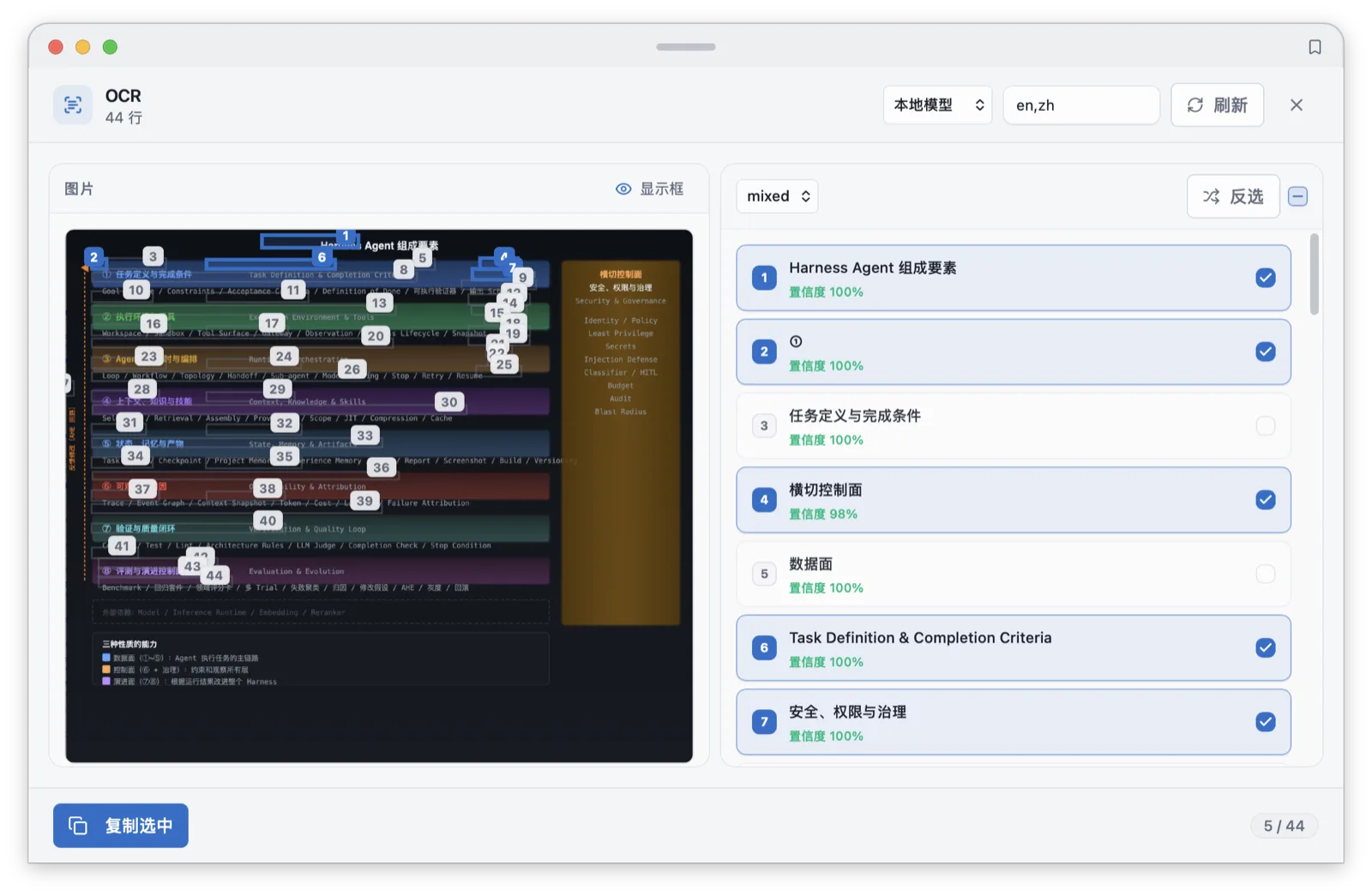
If you are a student, this layer is the excerpting layer: photograph a page, get text you can search and tag, and stop typing quotes by hand.
Translation: why we make you bring your own key
Syzygy ships no "our translation service." Every engine runs BYOK (bring your own key): you configure your own accounts in settings. The decision comes down to who owns three things.
Cost and quota come first. Translation is billed per character or throttled by quota. With your own account, the bill, the usage, and the throttling policy are all yours; Syzygy does not resell capacity, so there is no margin layer and no artificial cap in the middle.
Engine choice comes second. The traditional MT engines cover Baidu, DeepL, Google, Tencent, and Youdao, with AWS and Azure also in the codebase; AI translation runs on any AI profile you configure. Different engines win on different material; the best pick for legal text is often wrong for chat. That choice has no business being taken away from you.
Key storage comes third. API keys never touch the config file. They go into the OS keychain (macOS Keychain, Windows Credential Manager); the config file keeps only non-secret account identifiers.
The configuration model has a few details of its own: the list order is the fallback order. The first engine fails, the second tries, and there is no separate priority field. Each account can carry provider-specific parameters beyond the app id and key: DeepL can select its free or pro endpoint, Tencent Cloud can select a region. Default source and target languages are configurable (source supports auto), so routine use involves no dropdown at all. Fallback execution runs under a budget shared with AI calls: 12 attempts total, at most 3 per engine, a 60-second wall clock for the whole chain. Results are cached (with a TTL and capacity cap, plus a separate hot-entry budget), so retranslating the same text costs no repeat requests.
Three modes cover the use cases: mt (traditional machine translation), ai (large-model translation), and compare (both at once, side by side). mt is fast, stable, and cheap for long deterministic content; ai is stronger on colloquial phrasing, terminology consistency, and register, but non-deterministic; compare exists for proofreading, when important text deserves a read from both roads. Long text sent to an AI engine is split into at most 8 chunks so no single request overflows.
Two switches in the default configuration start closed: translation as a feature is disabled until you enable it, so it never appears in the UI uninvited; and remote access is off by default, requiring an explicit switch before the first request ever reaches a provider. That belongs to the same logic as BYOK. Deciding which provider your content goes to should be a deliberate, one-time decision, not a default hiding behind a feature toggle.
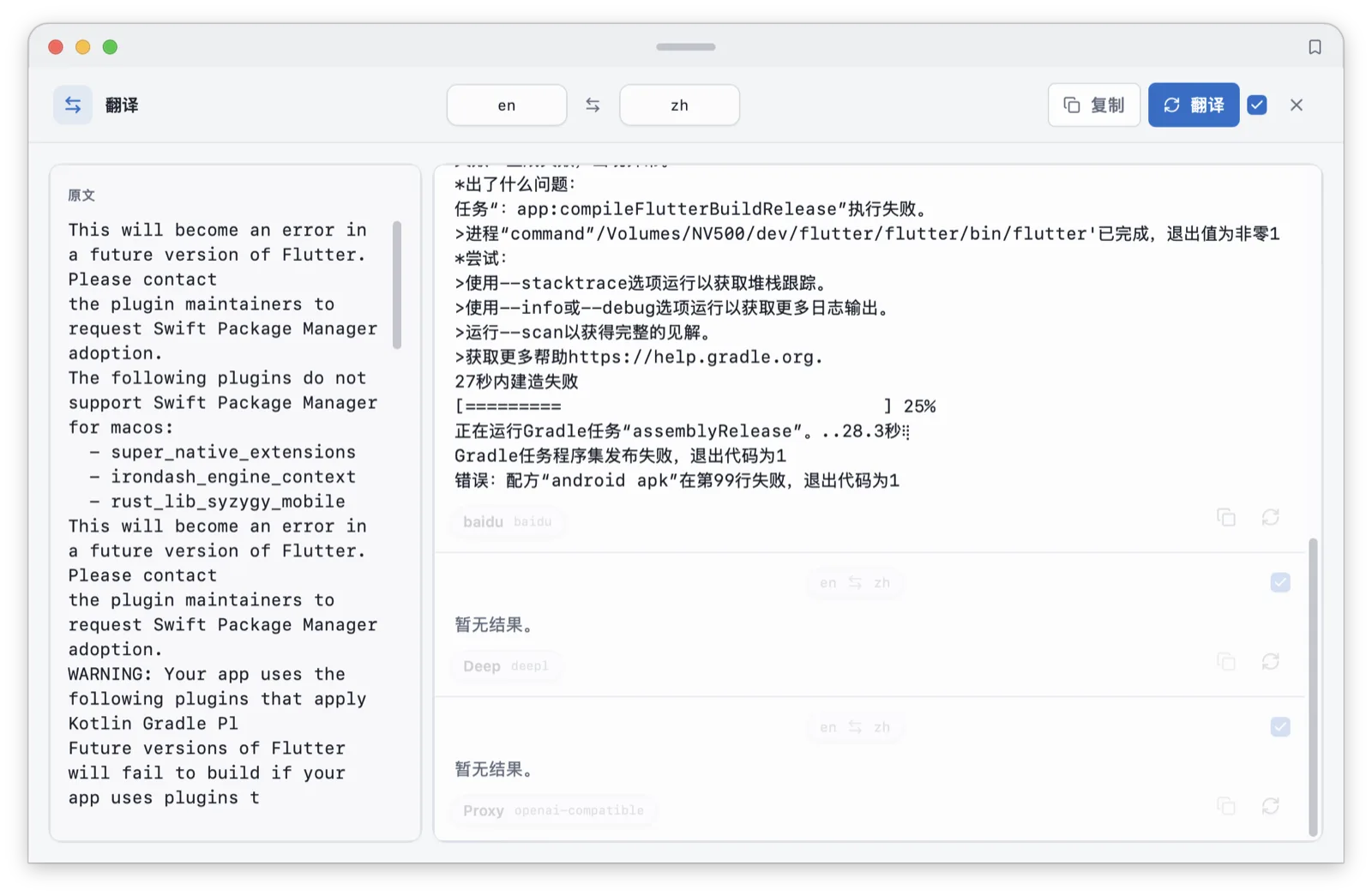
If you are on a cross-border team switching between two or three languages all day, put your two most-used engines at the top of the list and let automatic fallback handle the rest; a mid-day engine outage never becomes your retry problem.
The text workbench: 16 rules, zero uncertainty
OCR and translation answer "is there text" and "what does it mean." The workbench answers "is the format right," and its principle is the mirror image of AI: determinism above everything.
The 16 built-in rules are all pure text transforms:
- Whitespace: merge line breaks, collapse spaces, force single line, deduplicate lines
- Case: all uppercase, all lowercase, capitalize
- Structure: JSON formatting, both pretty and compact
- Encoding: URL encode and decode (component semantics, reserved characters kept), Base64 encode and decode
- Counting: words, lines, characters
Determinism here is a checkable property: same input, same output, no model calls, no network requests, no token cost, no latency. A paragraph copied from a web page arrives shredded into fragments; one click on merge-line-breaks fixes it. JSON pasted as one unreadable line; pretty-print fixes it. A list with duplicated entries; deduplicate-lines cleans it in one pass. Handing these to AI is a strict downgrade: slower, costlier, and able to silently alter content.
The rules do not swallow errors, either. Feed invalid JSON to "JSON pretty" and it fails loudly instead of emitting plausible-looking garbage; URL-decoding invalid escapes reports the error the same way. Failure being explicit is the other difference from "let AI guess."
Applying a rule never overwrites the original, either: the result lands as a new clipboard entry, the source stays in history, and the new entry carries provenance (which item, which rule) while the output also goes straight to the system clipboard, ready to paste. The processing trail is therefore traceable, and the raw data is always intact.
The counting rules earn their place too: a tweet pressing against the character limit, a doc limited by lines, a report capped by characters, select the text and the numbers are right there. One more deterministic tool sits nearby: when a copied item contains an arithmetic expression, the clipboard calculator evaluates it inline (6-digit precision by default). Like the 16 rules, it is pure local computation, fast enough to be invisible.
If you write for a living, material collected from a dozen sources arrives carrying a dozen formats. The 16 rules clear roughly 80% of the pre-publication cleanup; the remaining 20% is what AI or your hands are for.
AI post-processing: the optional layer, on your profiles
AI is the last layer of the chain, and Syzygy's stance shows up in the defaults: AI auto-tagging is off, every AI capability requires a profile you configure (provider, model, key, also BYOK, keys in the keychain), and the AI translation engines are part of the same profile system. With zero profiles configured, the first three layers work exactly as described.
With a profile configured, AI does what the first three layers cannot: rewriting tone on your prompt, reformatting into a template, summarizing. Every call lands in a usage ledger (token consumption recorded per call and per purpose, kept 90 days by default), so what it cost is never a mystery.
Rewriting quality depends on prompts, and prompts are first-class citizens in Syzygy: templates have version management (built on an embedded git implementation, content-addressed), so a bad edit rolls back and mature prompts accumulate for reuse, callable from the slash menu with qualifiers. That mechanism gets its own post in the prompts and skills workbench.
The local LLMs introduced in 1.2.0 give this optional layer a path with no network at all: mistral.rs runs GGUF models in-process, Metal-accelerated on macOS, exposing an OpenAI-compatible endpoint bound to 127.0.0.1. Point an AI profile at that endpoint and "AI post-processing" becomes a purely local stage; content never leaves the machine. The model catalog ships SHA-256 checksums, verified at download; models declare modality support in three states (supported, unsupported, unknown), so you learn whether a model can take images before you send one, not from a request error after.
Why insist AI stays optional? Translation and text extraction are already solved well by traditional engines and local rules; forcing them through a large model only adds cost and nondeterminism. Conversely, tone rewriting and structure reworking are things deterministic rules genuinely cannot do. The layering sends each need where it belongs: rules handle transforms, MT engines handle translation, models handle understanding and generation. Any layer you don't need, switch off.
If you freelance for clients on both sides of an ocean, the typical pattern is: workbench and OCR only, zero spend; a big translation project lands, configure one engine account sized to it; occasional long-text polishing, point the profile at a local model or top up on demand. The tool follows the project's rhythm, not the reverse.
One pipeline, independently switchable
Back to the foreign manual screenshot from the opening: OCR is free and offline, translation runs on your key through your engine, format cleanup is instant and free, and AI joins only if invited. Four layers, each with its own switch, any layer absent without breaking the rest. That is what it concretely means to put AI in the optional seat.
After installing, run one real item through the chain: copy a formatted paragraph from a web page, try merge-line-breaks and JSON pretty in the workbench, then configure one translation engine and try Cmd/Ctrl+T. The translation setup lives on the plugins page; key and account preparation is in the install and first-run guide; pointing the AI layer at a fully local setup is in the local models workbench; every shortcut in the chain is collected in the keyboard shortcuts cheatsheet.
The longer a text-processing pipeline, the more intermediate stops there are to leak content or mangle it. Compressing four layers into one window is not about speed; it is about every step's destination being legible.
Frequently asked questions
Do I need my own API key to translate with Syzygy?
Yes, translation is BYOK (bring your own key): both traditional MT engines and AI translation run on accounts you configure yourself, so billing and quota stay yours. OCR needs no key; the built-in models work out of the box.
Do the text workbench rules ever change the meaning of my text?
No. All 16 built-in rules are deterministic transforms: merge line breaks, collapse spaces, deduplicate lines, case conversion, JSON pretty/compact, URL and Base64 encode/decode, and word/line/character counts. Same input, same output, no model involved and no token cost.
Will translation automatically send my clipboard to the cloud?
No. Remote access for translation is off by default and must be enabled explicitly before first use. After that, content only goes to the translation provider you configured, and your keys live in the OS keychain, not in config files.
Can I use Syzygy normally without any AI?
Yes. OCR is built in and free, text rules run locally, and translation needs one engine account. AI is an optional layer: auto-tagging is off by default, AI post-processing runs on profiles you configure, and you can point those profiles at a fully local model.