Syzygy's author spent years writing Rust at a network security company. He started this project in January 2026; in June, after being moved to a role he didn't want, he quit to work on it full time. The reason the project exists is a request he kept running into on technical forums: a clipboard that syncs only between your own devices, ideally LAN-only, with nothing passing through anyone's server.
It's worth listing what the market offered at the time, because the gap was real. Cloud clipboards depend on the vendor's servers and your account. Handoff works only between Apple devices. Windows' cloud clipboard is tied to a Microsoft account. Open-source tools commonly sync through WebDAV or a relay server, which means the user first has to learn what WebDAV is and then maintain storage for it. And for the phone-to-PC hop, the solution most people actually use is a messaging app's "File Transfer Assistant."
Syzygy's answer is direct connections. Content travels point-to-point between your devices, encrypted before it is written to disk, with no centralized cloud in the path. And Syzygy treats the clipboard as more than a list of recent items: it's a workbench where text, images and files are managed, searched, processed, and pasted back out. This post walks the whole pipeline, then lays out platform support and pricing honestly, including the combinations that don't work yet.
The name, and a product judgment
"Syzygy" is the astronomical term for three celestial bodies aligning into a nearly straight line under gravity. The product borrows the image: your devices are independent bodies, and once they align, copying and pasting finally crosses the ecosystem wall. Aligned devices are worth more than the sum of each device used alone.
The roadmap rests on one judgment: the clipboard is the highest-frequency, most natural entry point into a person's workflow. What we are actually building is a personal data workspace, where data moves through its full life cycle: capture, flow, sync, understanding, organization, retrieval, reuse. The clipboard is the first layer, and it has to be the sturdiest; voice input, AI processing and local LLMs stack on top of it. The full staging is in the product roadmap. One more principle pairs with it: invisible by default. Copying syncs itself, speech transcribes itself, files get understood on their own. Good sync is sync you stop noticing.
What happens after you copy
Once you're logged in and the client is installed, copying works exactly as before. Every copy becomes a local history entry with its type, source and preview. One detail worth surfacing: copying the same thing twice produces two history entries (you did, after all, copy it twice), but the storage layer is content-addressed and keeps a single copy of the data. Disk space goes to genuinely different content.
There's a prerequisite hiding under all of this: the operating system doesn't tell you whether a clipboard change is a new copy from another app, an echo of something Syzygy itself just wrote, or the same copy being read twice. Syzygy's native observation layer distinguishes all three. On macOS it uses the NSPasteboard changeCount; on Windows it checks the clipboard sequence number and the writer's identity. Content only enters history when its source checks out. Self-write suppression sounds like a footnote, but without it, every paste from Syzygy would re-enter the list as a new item, and the history would fill up with echoes of itself.
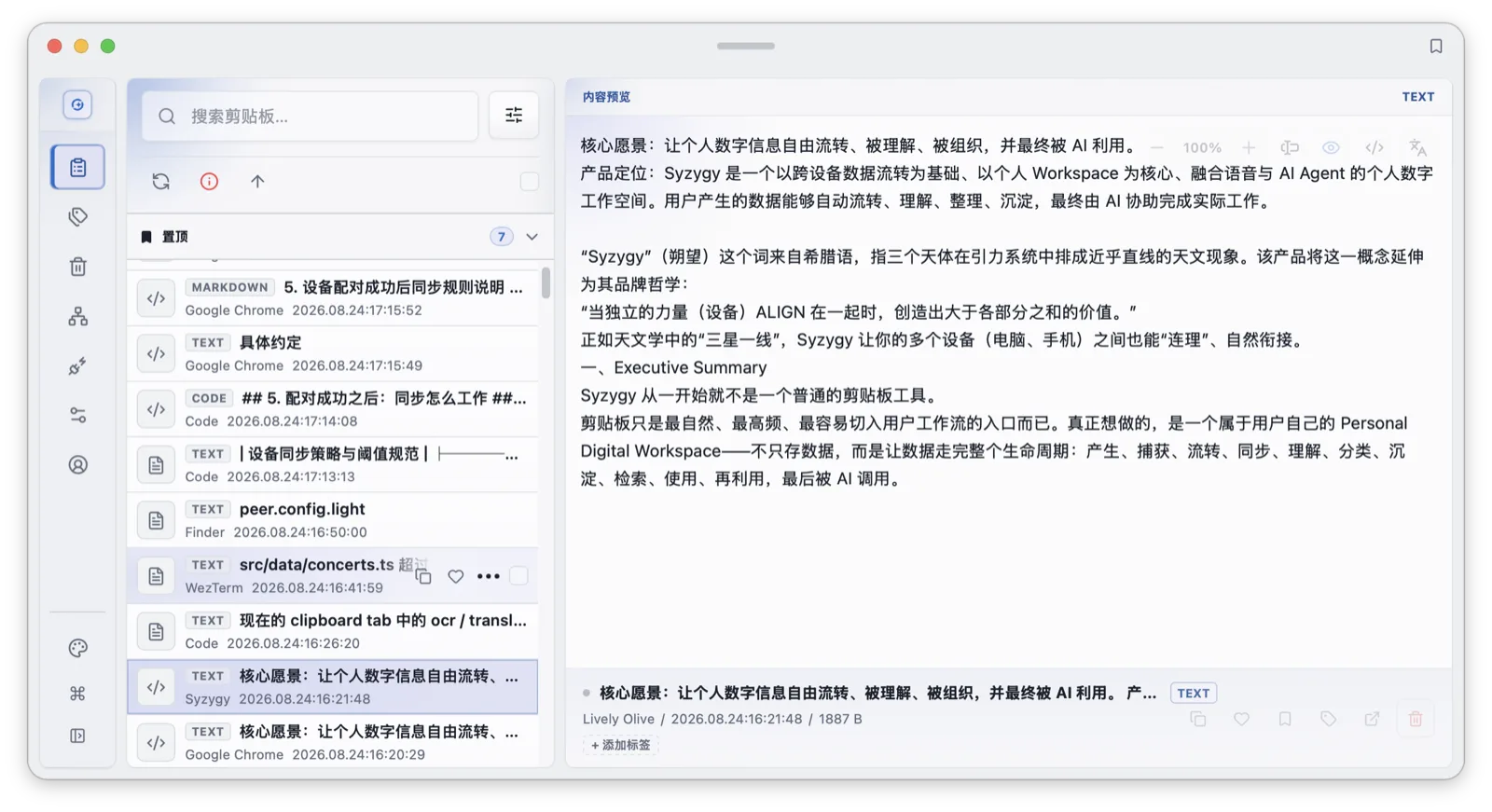
Three-pane layout: navigation, history, detail. The detail pane decides whether an item is actually usable.
Plain text gets word counts and editing tools. Code gets syntax highlighting. Markdown renders. Images open full size with one-click OCR text extraction. SVG code and Figma nodes render into actual images: you can "copy as image" and drop the result into a chat, or switch back to source mode and take the raw code. Office documents (.xlsx, .docx, .pptx) and .zip archives preview inline, no download-and-open detour.
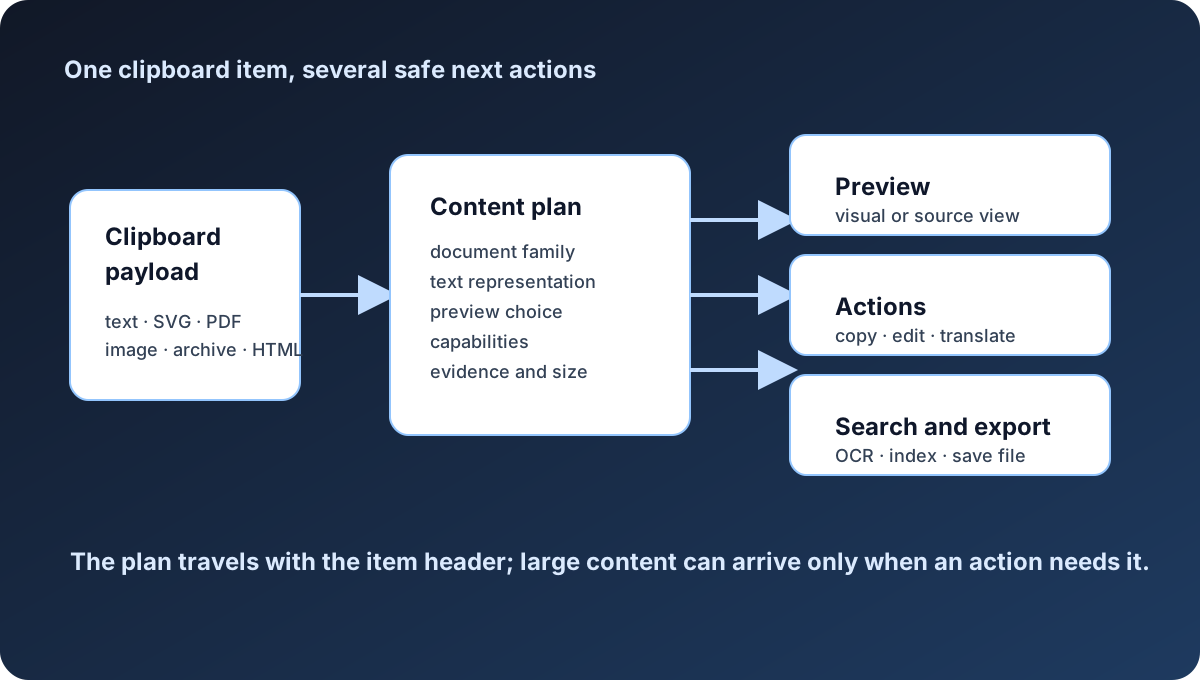
A tour of content types: one history list, but each type gets the preview and actions it deserves instead of a gray one-liner.
Text inside images can also be region-translated: circle an area, and OCR plus translation run in one pass. OCR runs on a built-in model, entirely on-device; remote access for search and OCR is restricted by default and only works if you explicitly turn it on.
flowchart TD
  A[Copy something] --> B[Saved as a history entry]
  B --> C[Detect the content family]
  C --> D[Build the preview and capabilities]
  D --> E{Is the local content complete?}
  E -- Yes --> F[Copy / search / edit]
  E -- No --> G[Show metadata, wait for download]
  G --> H[Background transfer and verification]
  H --> F
  F --> I[Save a new snapshot]
I --> J[Tag, sync, trash, or export]Finding something you copied three days ago
A clipboard manager earns its keep on retrieval. Search covers keywords, tags, content types, and the text OCR extracted from images. Text that once lived inside a screenshot is searchable. The indexing design has its own deep dive.
Frequent items can be pinned. The pin list stays at the top of the clipboard page and inside the Quick Panel; on macOS, Ctrl + Option + number (0–9) pastes the corresponding pin directly. Favorites archive for the long term. Tags work manually, with optional AI tagging (it burns tokens). Deleted items go to the trash first and only disappear after you empty it. The organization system has its own write-up.
Speed of access decides whether a clipboard tool gets used at all. On macOS, Option + Shift + V summons the half-screen Quick Panel by default; arrow keys move between items, Enter pastes, and the current window is never left. Shift + Right opens a full-screen preview, Esc closes. Keyboard users get one more path: a global command palette that searches pages and issues actions directly, with a configurable shortcut. Any item can also be popped out into a floating window with adjustable opacity, always-on-top and zoom. It's the right tool for pinning a snippet of code or a screenshot to the side of the screen while you work. Preview, popups and the command palette get their own article, as do all the shortcuts.
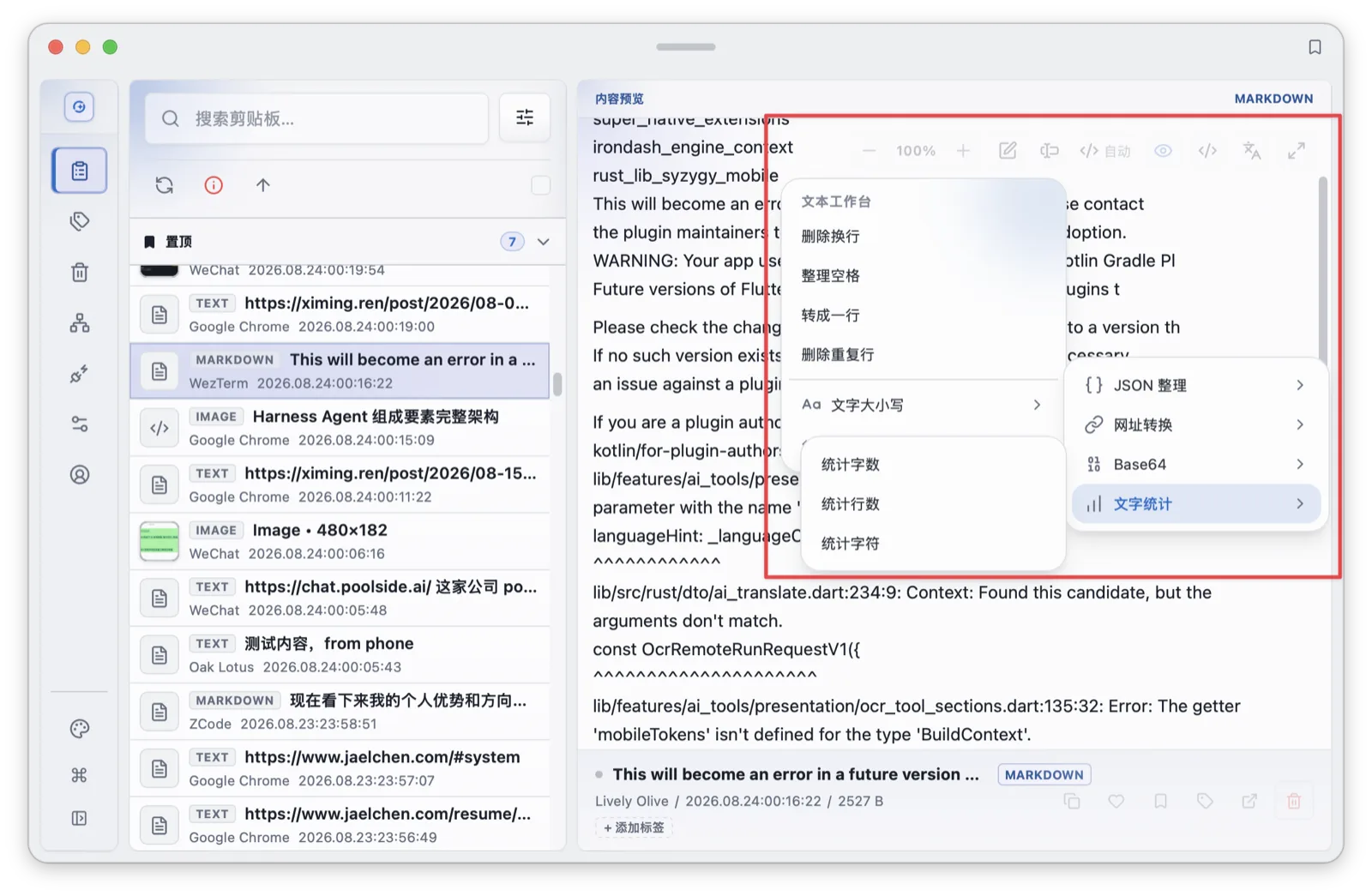
The text workbench: process what you copied instead of pasting it somewhere else first (word count, space removal, Base64, JSON formatting, batch replace, line dedupe), then send it back to the clipboard.
Two devices, behaving like one
Cross-device sync starts with pairing. On one device you open the Peers screen, find the other device, and initiate; both sides confirm local trust; then the devices talk to each other directly. The full pairing flow and its verification steps have a dedicated article; here we stick to behavior.
Sync has two layers. The summary (type, preview, timestamp) is small and arrives first, so the other device's list immediately shows that something new exists. The payload is bigger and follows policy: automatically, or when you ask for it. Each trusted device gets its own settings:
| Setting | Default | Range |
|---|---|---|
| Realtime auto-download threshold | 50 MB | 0–200 MB |
| On-demand auto-download threshold | 5 MB | 0–200 MB |
| Catch-up count after reconnect | 3 items | 1–10 items |
| Device sync priority | 1 | integer, higher wins |
Realtime mode is aggressive by default and suits a daily-driver machine. On-demand mode drops the automatic threshold to 5 MB for a phone where storage and data plans matter. Anything over the threshold shows up as a preview; tapping download fetches the full content, queued in the background, with automatic retries, and the item counts as synced when the file actually exists locally, not when the page says so. When a device comes back online after a while, it catches up on only the last few summaries, never the entire history from the offline window. With several devices online, higher-priority devices sync and surface first; making the work PC the top priority is the common setup.
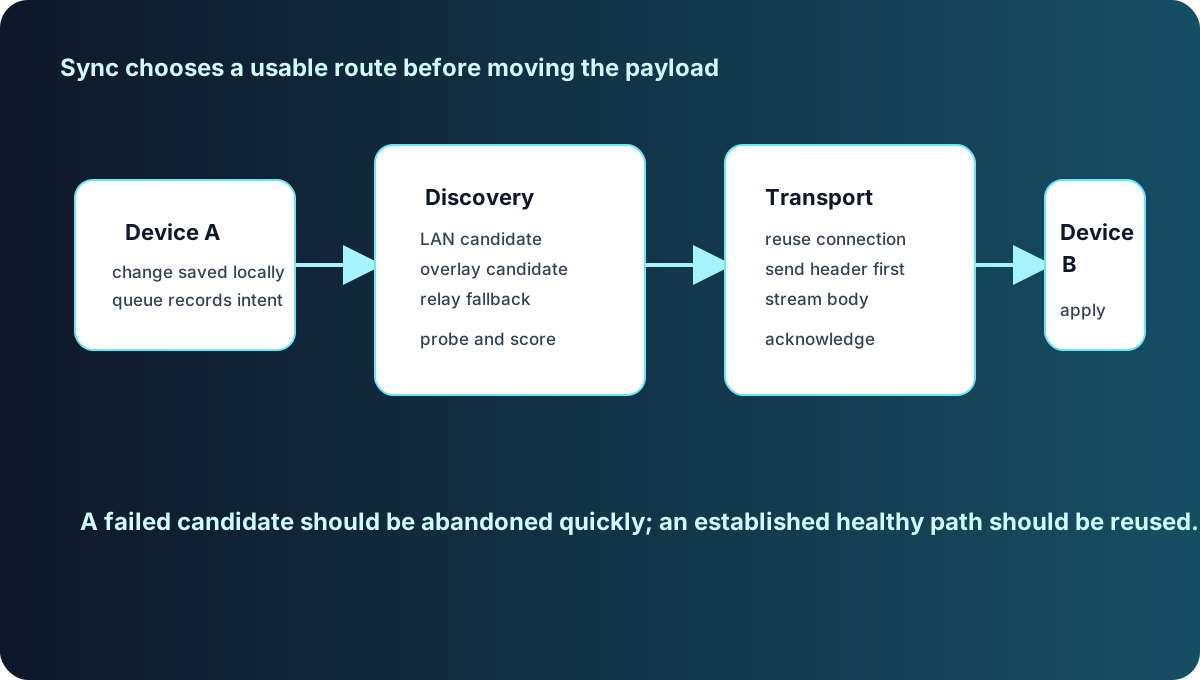
The two-layer structure: push a small summary so the other device knows, then deliver the payload according to each device's mode and threshold.
The trusted-device list is always visible and always manageable. Every peer has its own thresholds and priority, and any peer can be blocked outright; a blocked device immediately loses sync and access.
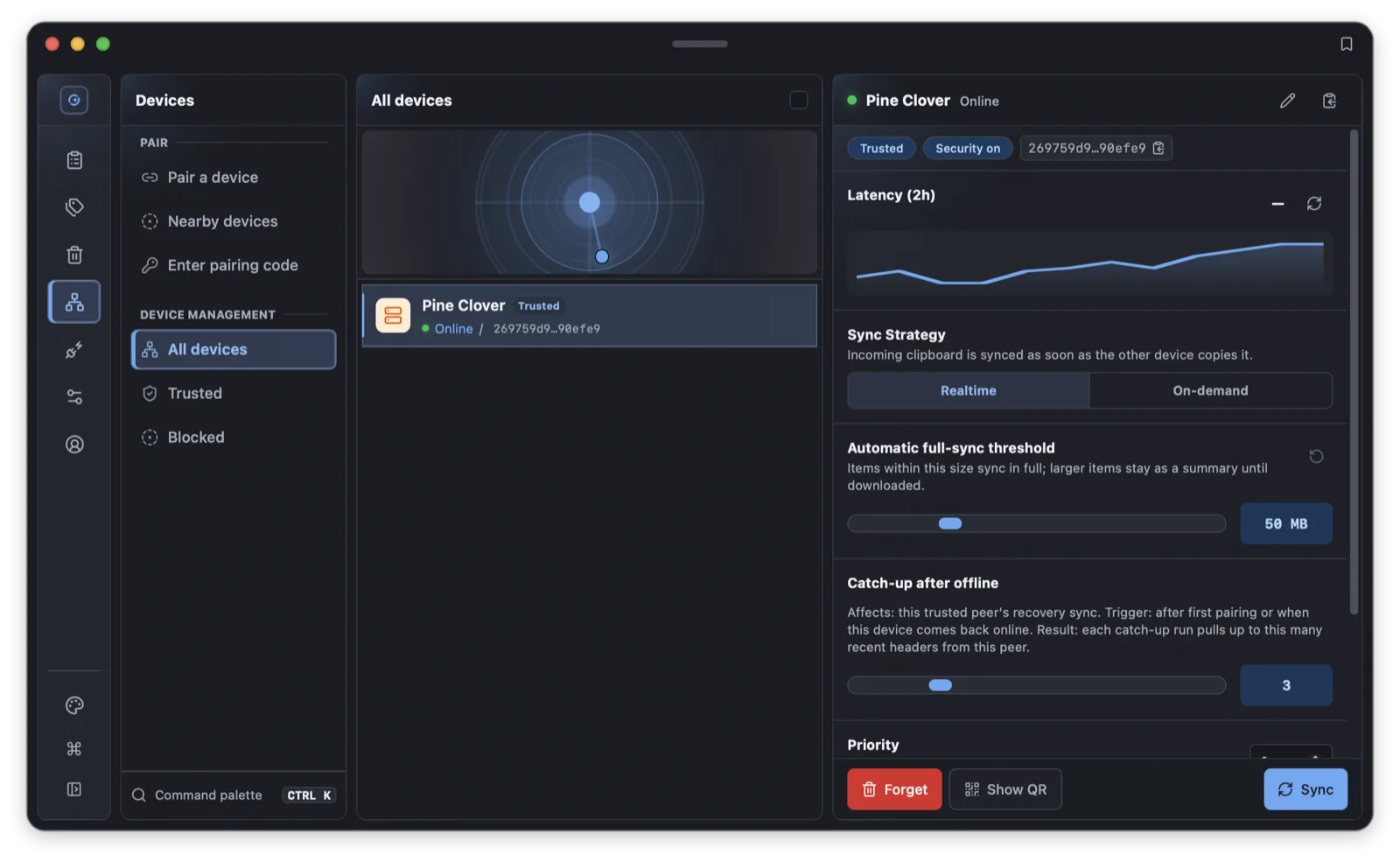
Trusted peers: sync scope is controlled per device, not by one global switch.
Where the encryption boundary sits
Clipboard content is private by nature: passwords, one-time codes, contract clauses. Here is where Syzygy draws the encryption boundary.
Payloads are encrypted at capture time with XChaCha20-Poly1305. What lands on disk is ciphertext; what travels between devices is ciphertext. The key travels exactly once, inside the pairing token, from one device to the other. After that it never leaves a device again. A relay that ever carries your traffic sees bytes it cannot read. The authorization server knows how many seats you bought and which devices you verified; it does not see your clipboard.
One engineering trade-off remains: the encryption uses a deterministic nonce, so the same plaintext under the same key always produces the same ciphertext. The payoff is that deduplication keeps working: identical content copied on two devices stores one encrypted blob. The cost is linkability: ciphertexts can be compared for equality. That leakage was explicitly evaluated and accepted in writing for a personal two-to-three device mesh, and the reasoning lives in the design documents, not a code comment.
Application-level privacy mode adds one more layer: sensitive content detected in the clipboard is redacted and blurred so previews don't leak, and basics like a password lock are in the box. Much of this comes from the author's security-industry background, and all of it follows one plain principle: the data belongs to the user. BYOK runs through every AI feature: translation and AI processing use keys and accounts you configure yourself.
The AI layer: from OCR to local LLMs
The clipboard collects; AI processes. Four pieces live here today.
Translation and text processing: multi-engine translation with Baidu, DeepL, Google, Tencent, Youdao and AI interfaces, all BYOK; combined with region OCR, foreign text inside images is fair game too. Rewriting, summarizing and polishing land directly on the current item. Details in the OCR, translation and AI text workbench article.
MCP: Syzygy exposes the clipboard and related capabilities as an MCP service, so external AI clients can read what you're working on.
Voice input: the 1.2.0 development cycle adds the full dictation pipeline. Silero VAD handles streaming segmentation; local engines cover system dictation, the full Whisper family, FunASR Paraformer and Qwen3-ASR. Recognition happens on-device. Remote engines (including Tencent Cloud, Qwen, StepFun, iFlytek, and Volcano Engine) are opt-in and off by default, and the free tier limits continuous recording to 60 seconds. Hotword dictionaries match on whitespace shape, so proper nouns stop getting chopped up. The pipeline is dissected in the voice input article.
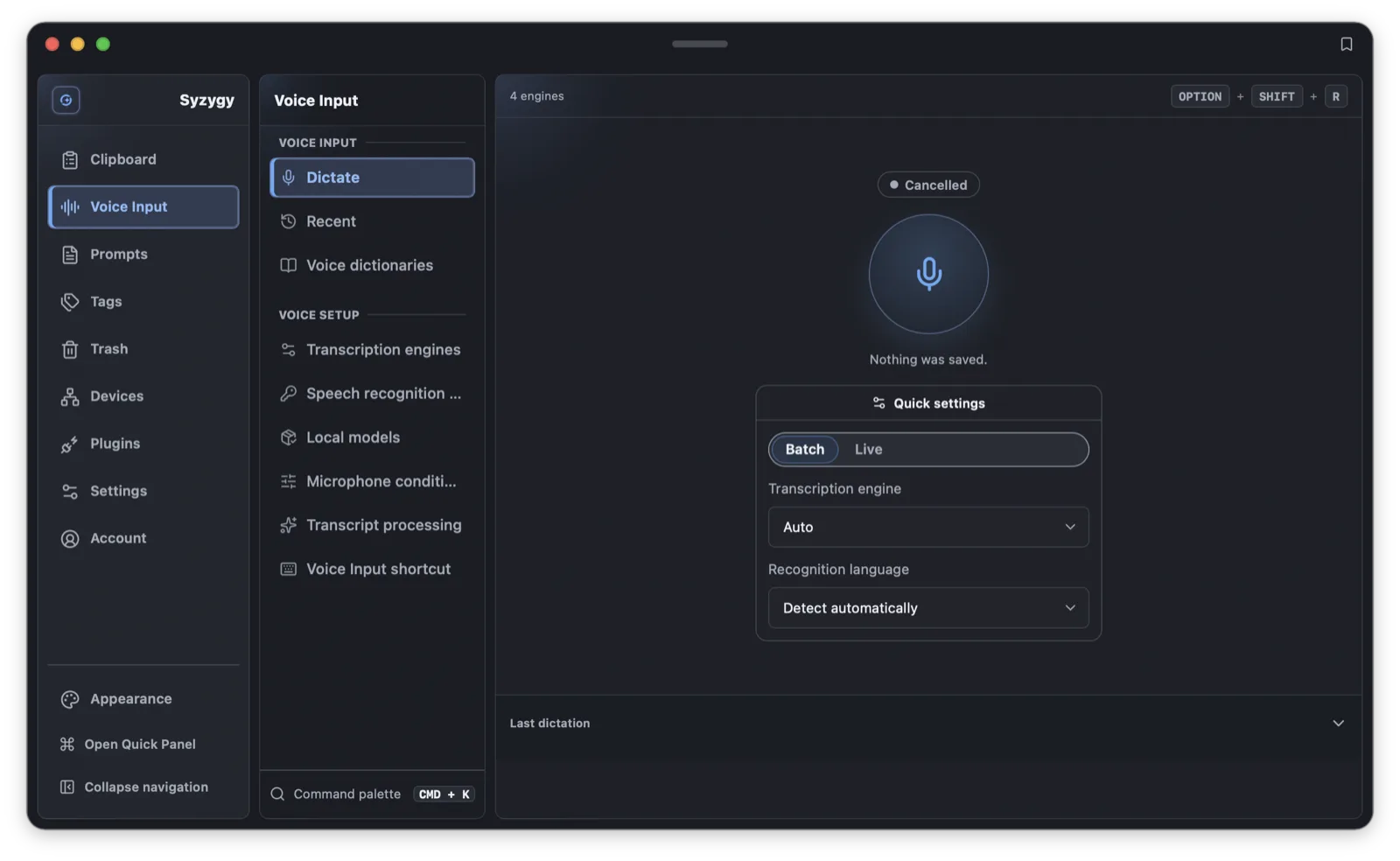
Voice dictation: speak, watch segments transcribe, and the result lands in clipboard history ready to paste anywhere.
Local LLMs: also in 1.2.0, mistral.rs runs in-process, with Metal acceleration on macOS, loading SHA-256-verified GGUF models and serving an OpenAI-compatible endpoint bound to 127.0.0.1 only. Retrieval blends keyword and vector search with reciprocal rank fusion. The model never leaves the device; neither does the data. Design notes in the local AI models article.
Prompts and skills got a workbench too: prompt templates with tags and attachments, versioned with an embedded gitoxide repository; skills resolved through a registry and a slash menu with qualifiers. See prompts and skills.
How this thing got built
The engineering difficulty of a cross-platform clipboard concentrates in four places: native clipboard interaction, high-frequency UI and hotkeys, real-time network transport, and platform adaptation. Any one of them is a project; Syzygy needs all four at once. Development never went full vibe-coding. The workflow kept a human in the loop: requirements were written down before being handed to AI, and the human owned architecture and code review. GPT-5.2 authored most of the first 800 commits. The first MVP was a CLI-only sync core, three days; the UI took the following two weeks.
Testing got the same treatment. A Docker-based simulation environment with netem for network conditions has existed since the early days, so cross-device sync logic and failure paths get exercised without a bench of physical phones. Today the full cross-platform automated suite takes roughly 50 minutes single-threaded. Mobile sequencing was deliberate: close the Android–macOS loop first (Android's background limits are lenient), save iOS's strict background machinery for last; it's one reason iOS is still in review today.
Platform support and pricing boundaries
Platforms: Windows, macOS and Android have direct downloads, and Android can import content through the system share sheet. iOS is in App Store review. A Linux AppImage exists and is signed, but official compatibility testing across desktop environments isn't done; the fragmentation problem has not been wished away. Full setup steps, including the macOS accessibility permission, are in the install guide. If you're weighing Windows' built-in history, Ditto, Maccy or Paste, the comparison article puts their sync and privacy models side by side.
An account is required. The free tier includes core local clipboard management, with limits on history size and file previews. Cross-device sync follows the device-role rules below; free PCs cannot pair. Pro is per-seat. One seat covers one Pro PC and up to two free phones.
The pairing matrix deserves its own table, because it decides what you need to buy:
| Device combination | Pairing |
|---|---|
| Free phone ↔ Pro PC | Allowed (1 Pro PC per phone, 2 free phones per PC) |
| Any Pro-to-Pro combination | Allowed, no pairing quota |
| Any combination involving a free PC | Rejected |
| Free phone ↔ free phone | Rejected |
| Free phone ↔ Pro phone | Rejected |
In other words, a free PC currently can't pair with anything, and phone-to-phone sync requires both sides on Pro. New pairing also requires the authorization service to be reachable (that's the anti-double-spend control for seats), and the limitation is just as real: no authorization service, no new pairing. Activation and seat assignment are covered in the Pro activation guide.
Where to start
Get the installer (an .exe on Windows, drag-to-Applications on macOS, an .apk on Android), log in, grant the accessibility permission if you're on macOS, and pair a second device. After that, the four-step verification is simple: copy something on the phone and watch it appear at the top of the desktop history within seconds. Suggested reading order: the install and first-run guide for environment setup, P2P pairing and sync for how trust and paths work, and the product roadmap for what comes next.
On the roadmap: a screenshot capture entry, rule-driven data flow, and fuller agent capabilities, with the latest changes summarized in the 1.2.0 changelog. The order doesn't change: build the data infrastructure first, then let AI work on top of it.
Frequently asked questions
Is Syzygy free?
Core local clipboard management is free, with limits on history size and file previews. Cross-device sync follows device-role and Pro-seat rules; free PCs cannot pair. Pro is sold per seat. One seat covers one Pro PC paired with up to two free phones.
Does my clipboard content ever reach a cloud server?
The content itself does not. It is encrypted on capture, and devices exchange data directly. Syzygy does run an authorization server, but it only verifies seat entitlements and never sees your clipboard content.
Which platforms does Syzygy support?
Windows, macOS and Android have downloadable installers. iOS is in App Store review. A signed Linux AppImage exists, but compatibility across desktop environments has not been fully tested.
How do large files sync between devices?
Sync has two layers: a small summary (type, preview, time) arrives first, then the payload. Each device can use Realtime or On-demand mode with default auto-download thresholds of 50 MB and 5 MB; anything larger stays as a preview until you download it.